
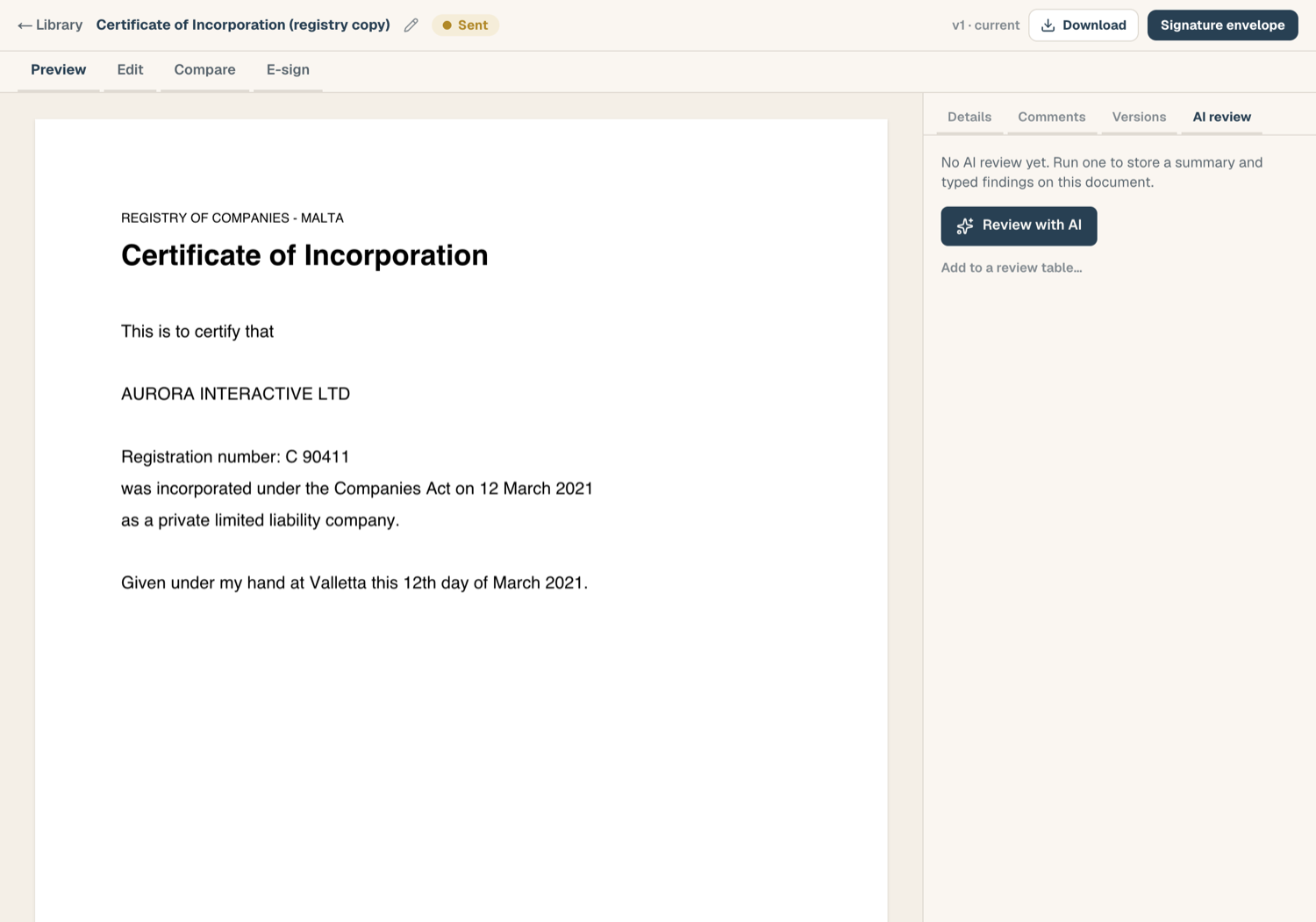
Beyond multi-document review tables, ComplyWise can run a structured AI review on one document and store the report on the document itself: a summary plus typed findings, each pinned to a page and a quote.
Run a review
You can start from two places:
- From the Document Library: open the row's menu and choose Review with AI, or click the sparkle chip if the document already has a report.
- From the document workspace: open the document and switch the rail to the AI review tab, then run it there.
In the run dialog:
- Optionally pick a preset. Its checks open below as an editable list: change a question, change the instruction, change the answer type, reorder, remove, or add your own, up to 12. Edits apply to this run only, and the heading marks the set as edited with a Reset to preset link beside it.
- With no preset, the review returns a structured assessment instead of typed findings: what the document is, what it covers with pages, what is missing or weak, and specific concerns. Add checks in the same list if you want typed, quoted answers.
- Optionally add a focus to steer the review ("focus on termination and liability"). Checks define the findings, the focus steers the summary.
- Pick a Model. Each option shows its token limit, credit multiplier, and Zero Data Retention. Document reviews keep their own remembered model, separate from your chat model, and default to a model chosen for long documents.
- Open How this review is run to read the part you cannot change: the reviewer framing, answering only from this document, page and verbatim quote on every finding, and "Not specified" where the document is silent.
- Run. The dialog states the credit cost before you commit.
Happy with the checks you edited? Save as preset stores them as a workspace preset for everyone here; if you started from a workspace preset and hold the prompt moderation permission, you can Update that preset in place instead. Platform presets are never overwritten.
Read the report
The report shows:
- A summary of the document, always produced.
- Typed findings matching the preset's columns, each with the page and a verbatim quote so you can check it in the preview without leaving the tab. Findings the AI thinks need attention are flagged visually.
- Recommendations: up to a handful of concrete changes, each with what to change, why, and ready-to-use suggested wording. Where a recommendation concerns an existing passage, the card says which one.
The report is stored on the document and stays visible to anyone who can view the document, even if the review was run long ago.
Insert a recommendation into the document
Contracts built in the builder are reviewed from their builder text directly: no PDF version is needed, and the report notes when the text has been edited since the run. In the builder, the rail on the right carries the same AI review tab (next to Blocks, Details, Comments and Versions), and applying a recommendation there changes the open document in place.
On a contract built in the contract builder, each recommendation offers actions (you need edit access, and the document must not be out for signature):
- Insert after adds the suggested wording as new blocks right after the passage it refers to, or Insert at end when the recommendation is a wholly new clause. The surrounding text and numbering are untouched.
- Replace paragraph swaps the referenced paragraph for the suggested wording, after a confirmation. It is offered only when the passage was found in the current text.
Applied recommendations are marked with when and how they were applied; open the builder to review and edit the result. Facts the AI could not know arrive as {{placeholders}} to fill in. On uploaded PDF and Word documents the wording can be copied instead, since those files are not edited in place.
Re-run and staleness
- Re-run replaces the report in place. The old report stays visible until the new one lands. The dialog reopens on the checks that run actually used, not the preset as it stands today, so you carry on from your last edit. A model that just failed is never pre-selected: the run falls back to the document default. The AI review tab also carries its own Model control, so you can set the model without opening the dialog.
- The report records which file version it was produced from. If a newer version of the document exists, a staleness note says so: re-run to refresh.
Go deeper
- Review further with Copilot hands the document off to chat: the composer opens prefilled with the document staged, and nothing sends until you do.
- Add to a review table puts the document into a multi-document grid without leaving the page; you get a link to the review when it is added.
Metering
A review costs 1 credit times the model multiplier per run. A failed run charges nothing.
Related articles
- Review tables: the multi-document grid
- Review presets: reusable finding sets
- Ground answers in your documents: the chat handoff, explained