
Templates turn a well-drafted contract into a starting point anyone in your workspace can reuse. The Templates gallery holds ready-made platform templates alongside the ones your team saves.
Open the gallery
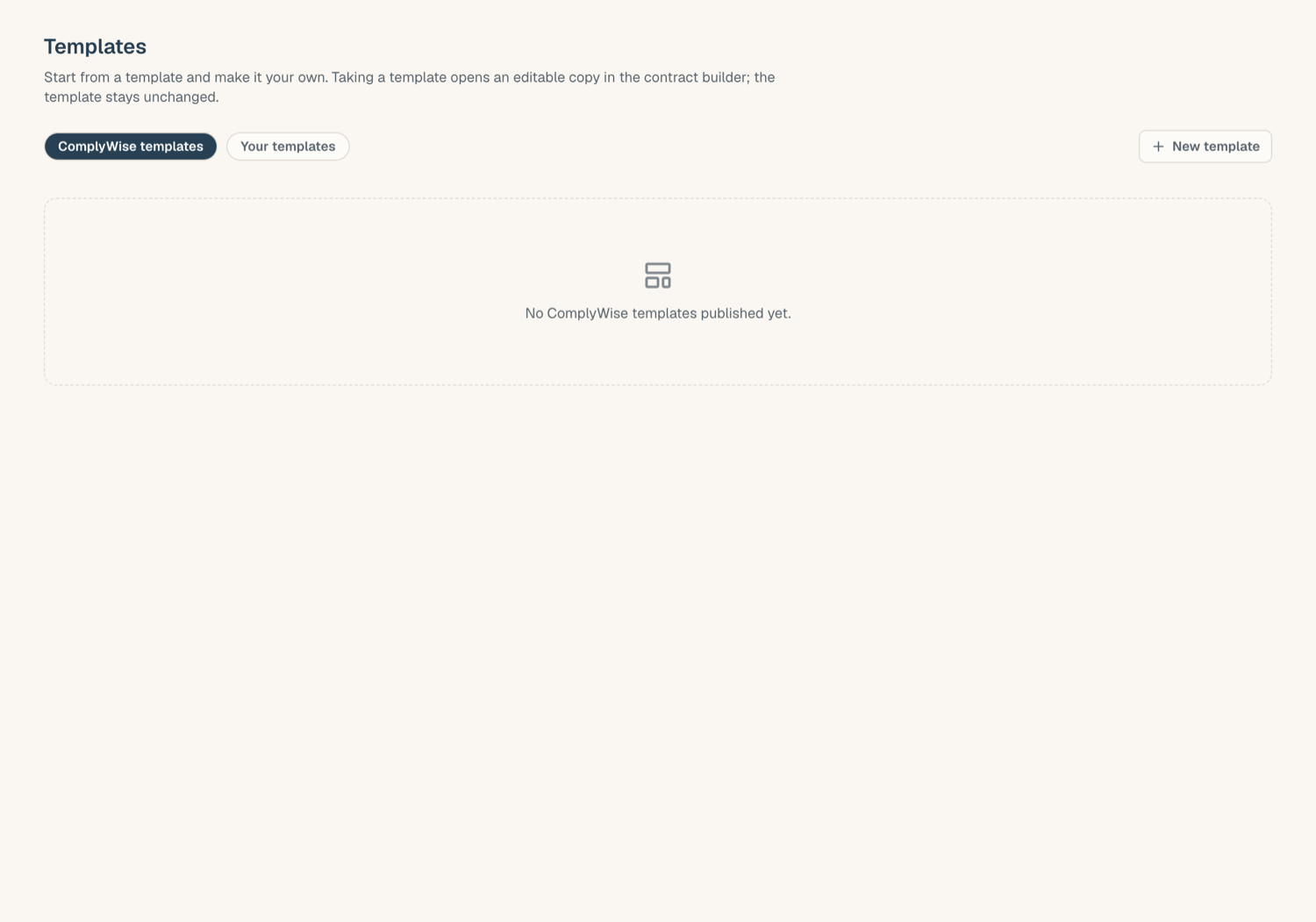
Open Documents and choose the Templates tab. Templates are grouped by category, and chips distinguish the two kinds:
- Platform templates: provided with ComplyWise, read-only
- Workspace templates: created by your team, editable
Click any card to preview the template before committing to it.
Create a document from a template
Templates are reachable from two places: the gallery, and the New contract dialog on the Documents page, where Start from lets you search templates by name and shows each one's kind next to it.
- Open the template and click Use template (or pick it under Start from when creating a contract).
- If the template contains variables (placeholders like {{effective_date}}), a fill step lists them; complete the ones you know. Anything left unfilled renders as a labeled blank line, never as literal braces, and you can fill it later in the builder.
- ComplyWise creates your own editable copy as a new contract in the library and opens it in the contract builder.
The copy is fully yours: edit any block, change the layout, add or remove inputs. The template itself is never modified by using it.
Save a contract as a template
Any contract you've built can become a workspace template:
- Open the contract in the Builder tab.
- Choose Save as template, give it a title and category.
- It appears in the gallery for everyone in your workspace. Placeholders in the content become the variables the next user fills.
Saving captures the contract's content and structure. Use placeholders for anything deal-specific (names, dates, amounts) so the template stays clean for reuse.
Manage workspace templates
- Workspace templates can be edited or deleted by members with library edit rights; platform templates can only be used, not changed.
- Templates live in the gallery, not the document list: they never clutter your library, and library search won't return them.
Tips
- Start from a platform template even when it's not exact: using it gives you an editable copy, and saving your adjusted copy back as a workspace template gives your team a house version.
- Keep one template per document purpose with clear, distinct titles so the gallery stays unambiguous as it grows.
Related articles
- Build a contract: the builder your copy opens in
- The document library: where the created copy lands
- The document workspace: working on the new document