
If you sign or prepare documents regularly, set your signature once in your profile. Anywhere you sign while signed in, the signature dialog then offers Use saved: one click instead of typing or drawing every time.
Set your saved signature
- Open your Profile (your avatar in the sidebar) and stay on the Account tab.
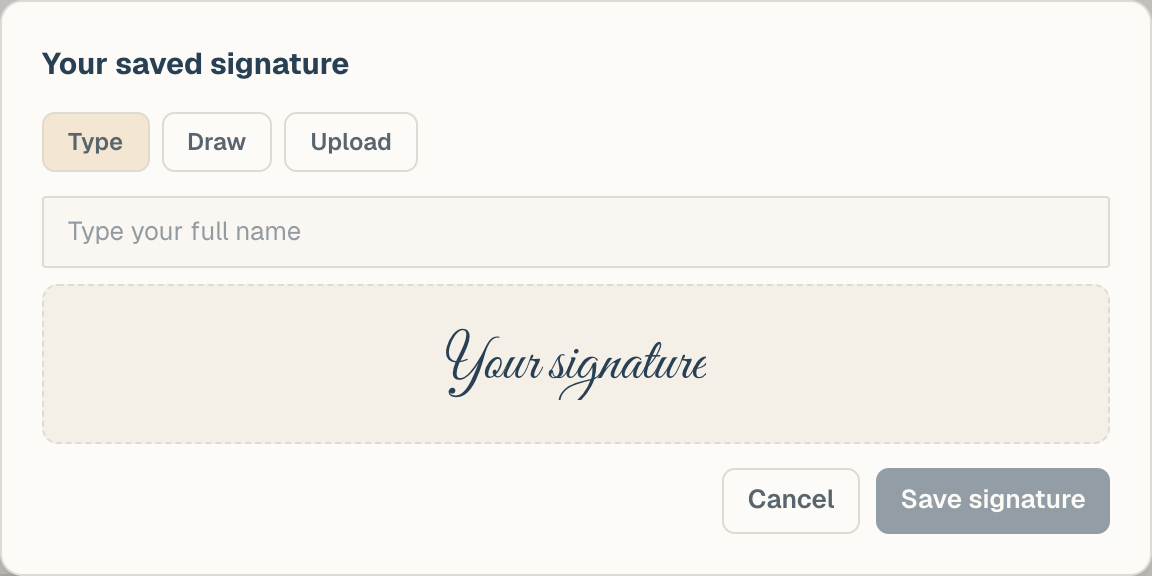
- Find the Signature row and click Add signature (or Replace if one exists).
- Create it one of three ways:
- Type your name; it renders in a signature style.
- Draw it with your mouse, trackpad, or finger.
- Upload an image of your real signature (PNG, JPEG, or WebP); it's cleaned up and stored as an image.
- Save. A preview appears in the row, with Replace and Remove beside it.
Where it's stored, and who sees it
Your saved signature is private to you. It's stored against your own profile, no one else in the workspace can view or use it, and it's only ever placed on a document when you choose to place it.
Use it
Wherever the signature dialog appears while you're signed in, a Use saved option sits alongside the Type, Draw, and Upload tabs:
- In the contract builder, when filling a signature field on a contract you're authoring.
- Anywhere else you adopt a signature inside the workspace.
You can also tick Save as my signature while typing or drawing in those dialogs, which updates your saved signature for next time.
External signers work differently
People who sign through a private link don't have accounts, so there's nothing to save a signature to. They adopt a signature per ceremony (type, draw, or upload) each time they sign. If you're helping a counterparty who asks why they see no saved option, that's the reason: it appears only for signed-in workspace members.
Change or remove it
Return to Profile > Account > Signature any time:
- Replace opens the same dialog to create a new one.
- Remove deletes it; the signing dialogs simply go back to Type, Draw, and Upload.
Documents you already signed are unaffected: signatures are burned into signed files at completion and never change afterwards.