
When a bank, PSP, or partner asks for your KYB documentation, don't build a ZIP file. Generate a permissioned share link from your KYB record: the recipient gets a clean, read-only, always-current view of exactly the items you chose.
Before you start
- You need the Contributor, Editor, or Workspace Admin role to create and revoke share links.
- Upload and verify your documents first; a share link shows what the KYB record holds today. See Upload documents into your KYB record.
Create the link
- Open KYB Manager in the sidebar and select your company.
- Choose the Share action on the KYB Manager.
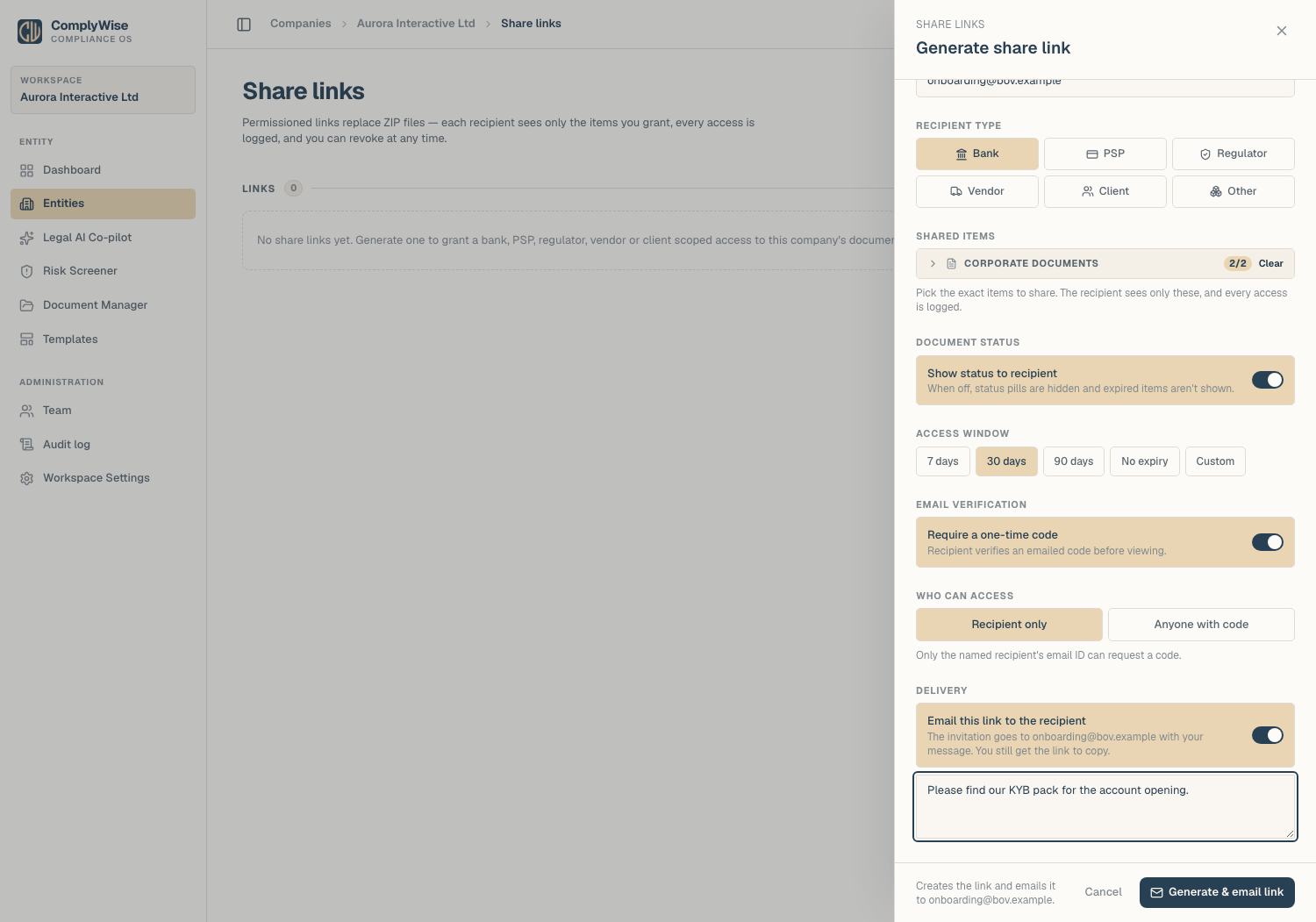
- Enter the recipient's name and email ID. The email ID is optional on an open link, but it is what the invitation goes to and what the access controls below check against.
- Pick the scope: select which sections and items the recipient may see, such as corporate documents, licences, or shareholder and UBO material. Anything you leave out stays invisible to them.
- Choose the access window (7, 30, or 90 days, a custom date, or no expiry) and whether the recipient sees document statuses.
- Under Delivery, decide whether ComplyWise emails the link. The footer of the drawer states exactly what will happen: Generate & email link sends the invitation to the recipient's email ID with your optional message; Generate link creates the link only, and you copy and send it yourself.
Access controls
Two switches decide who can open the link:
- Require email ID to view: the recipient must enter the email ID the link was shared with before anything is shown. Off means an open link: anyone holding it can view.
- Require a one-time code: on top of the email ID, ComplyWise emails a six-digit code to that address and the recipient enters it. Codes last ten minutes, allow five attempts, and are rate-limited. Choose Recipient only so that only the named email ID can request a code, or Anyone with code so any address can (the address used is logged on every access).
A recipient who has verified stays signed in on that browser for twelve hours; after that, or on another device, they verify again.
Send it
If you chose email delivery, the drawer shows Invitation emailed to the address once it has gone, and the link is still there to copy. If you chose link only, the drawer says Not emailed and the link is yours to send through whichever channel the counterparty prefers. Either way, possession of the link is the access, so send it directly to the intended recipient.
Need to send it again later? The link's manage drawer has Email link again with a message box. For security the raw link is never stored, so emailing again issues a fresh link and any earlier copy stops working.
What the recipient sees
- A read-only page carrying your workspace's logo and accent color (see Brand your external surfaces), with no ComplyWise login and nothing to install.
- A header showing how long access lasts (Access ends in N days) and, on gated links, the email ID they verified as.
- Only the items you scoped in. View opens each document inline on the page; Download saves it. Both work for as long as the link is live.
- Document statuses if you left them on, including Partially verified when some checks have passed. Internal review flags are never shown to a recipient.
- The current version of each document. If you upload a renewal later, the link shows the new version automatically; you never re-send anything.
Every access is logged: the link's access log records the invitation, each code sent and verified, page opens, and which document was viewed or downloaded, with the email ID and connection details.
Revoke the link
- Open the KYB Manager's share links list.
- Find the link and choose Revoke.
- The link dies immediately for everyone who holds it. If revocation fails for any reason, ComplyWise tells you so; it never shows a link as revoked while it is still live.
Anyone who can create share links can also revoke them, including links created by someone else.
Tips
- One link per counterparty. Mint a separate link for each recipient so you can revoke one relationship without cutting off the others.
- Scope tightly. Share only what was asked for; you can always create a second, wider link later.
- Track access before a call: the access log tells you whether the bank has actually looked yet.
Related articles
- External links: share, collect, and sign: how all tokened links work
- Respond to a bank onboarding request: the end-to-end playbook
- Request documents from a counterparty: the inbound direction