
Every business entity in ComplyWise has a KYB record: a structured checklist of the documents a bank, PSP, or regulator will ask for. This article shows you how to add documents to it, and what happens after you upload.
Before you start
- You need the Editor, Contributor, or Workspace Admin role. View Only members can read the KYB record but not change it.
- Accepted file types are PDF, PNG, JPEG, WebP, and TIFF, up to 25 MB per file. Word files belong in the Document Library instead; the KYB record holds evidence, which stays in PDF or image form.
Find the right slot
- Open KYB Manager in the sidebar and select your company.
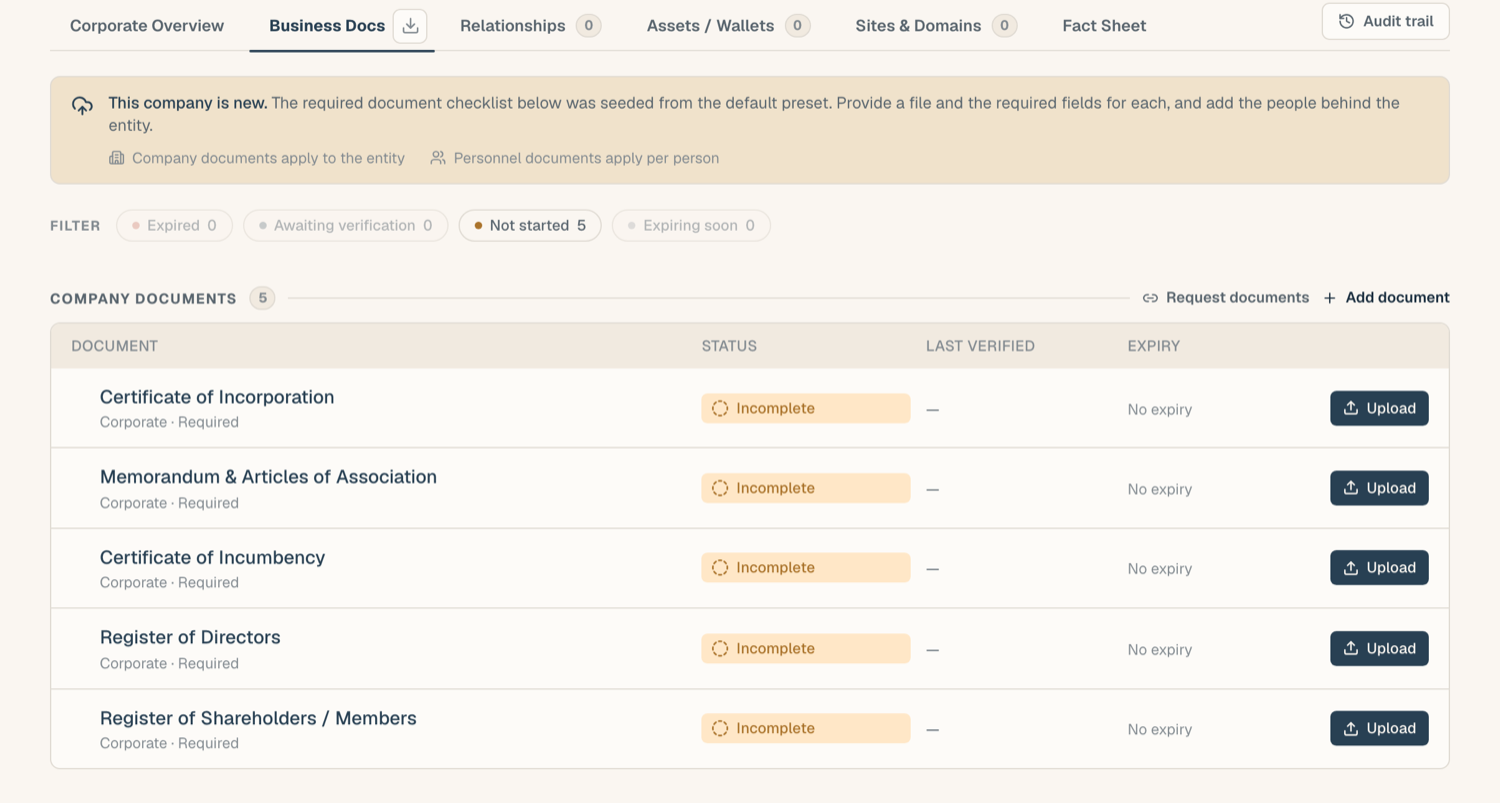
- Open the Business Docs tab. Each row is a document slot: a named place for one document type, such as Certificate of Incorporation or Memorandum & Articles.
- Required documents are listed first. If something you hold doesn't match any slot, use Add document to create a free-titled slot for it.
Upload the document
- Click the slot to open its drawer.
- Click Upload, or drag the file onto the upload area.
- The file lands immediately and the slot moves out of Incomplete.
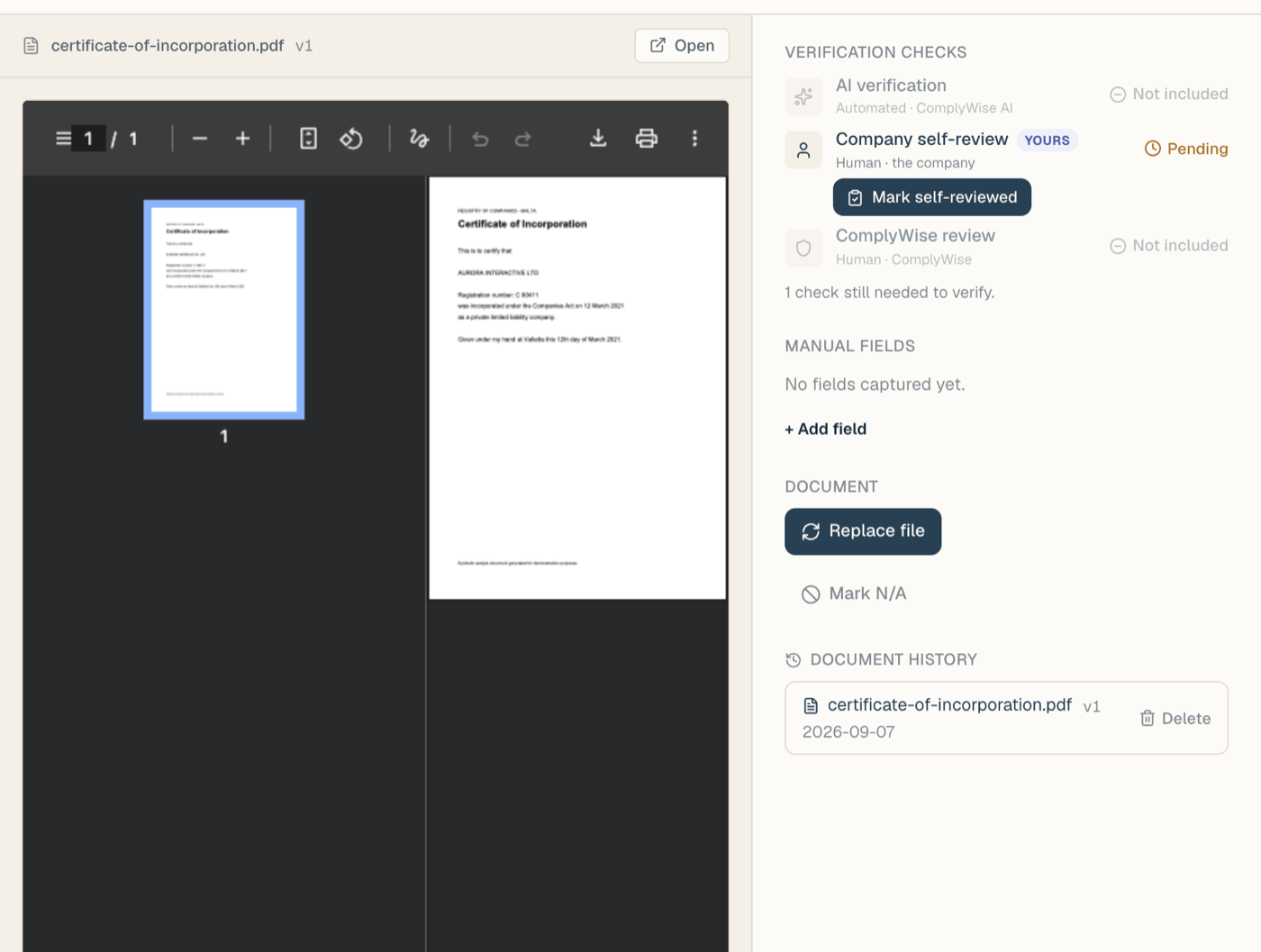
You can upload a replacement at any time: newer files become the current version, and earlier ones stay in the version history.
What happens after upload
Three things run automatically:
- Data extraction. ComplyWise reads key fields from the document (registration number, dates of issue and expiry) and fills the slot's data fields. Anything it reads that the slot doesn't track appears as a one-click suggestion; you stay in control of every value.
- Verification. Depending on your workspace's verification recipe, the document goes through self-review, an AI check, or a compliance review. The slot's status chip tells you where it stands; see Document statuses for the full list.
- Expiry tracking. If the document carries a printed expiry date, ComplyWise watches it. If the type has no printed expiry but a freshness window instead, saving an issue date fills the expiry for you as issue date plus that window. Either way you are alerted 30 days and 7 days before it lapses, and again when it expires. See Document statuses.
Statuses at a glance
| Chip | Meaning |
|---|---|
| Incomplete | No document uploaded yet |
| Pending | Uploaded, verification not finished |
| Needs attention | A check flagged something; open the drawer to read the reviewer's note |
| Verified | Passed verification |
| Stored | Held for reference; this document type isn't verified, only kept |
| Expired | The document's validity date has passed; upload a renewal |
| N/A | Marked not applicable to your business |
Tips
- Not applicable? Don't leave a slot empty forever: open it and choose Mark N/A so your readiness score reflects reality.
- Renewals are just uploads: add the new file to the same slot and the expiry clock resets. The old file stays in history.
- Wrong slot? Delete the file from the drawer and upload it to the right one; nothing is lost from history. If the whole slot was a mistake and you added it by hand, Remove document in the drawer takes it away; checklist slots are marked N/A instead.
Related articles
- Document statuses: the full status reference
- Verification & review: what reviewers and AI checks look for
- Share your KYB package: send the finished KYB record as a permissioned link