
An audit item is one line of the auditor's request. This article covers getting the list in, attaching evidence to each item, and keeping the thread with the auditor on the item itself.
Before you start
- You need the Contributor, Editor, or Workspace Admin role.
- Have the auditor's request list to hand; you paste it in rather than re-typing it.
Add items
Open the round (from its card on the pack's Overview, or from the rounds strip) and click Add items. Items land in that round; there are three ways in:
- One item: a title, the section, and the auditor's wording verbatim.
- Paste a list: one item per line; every row stays editable before it is saved.
- Copy from a previous audit: pick an earlier package and tick the items to reuse. Titles, sections, wording, and links to library documents, KYB Manager documents, and relationships come across (re-pinned to their current versions); uploaded files, notes, comments, captured lists, and statuses do not.
The item drawer
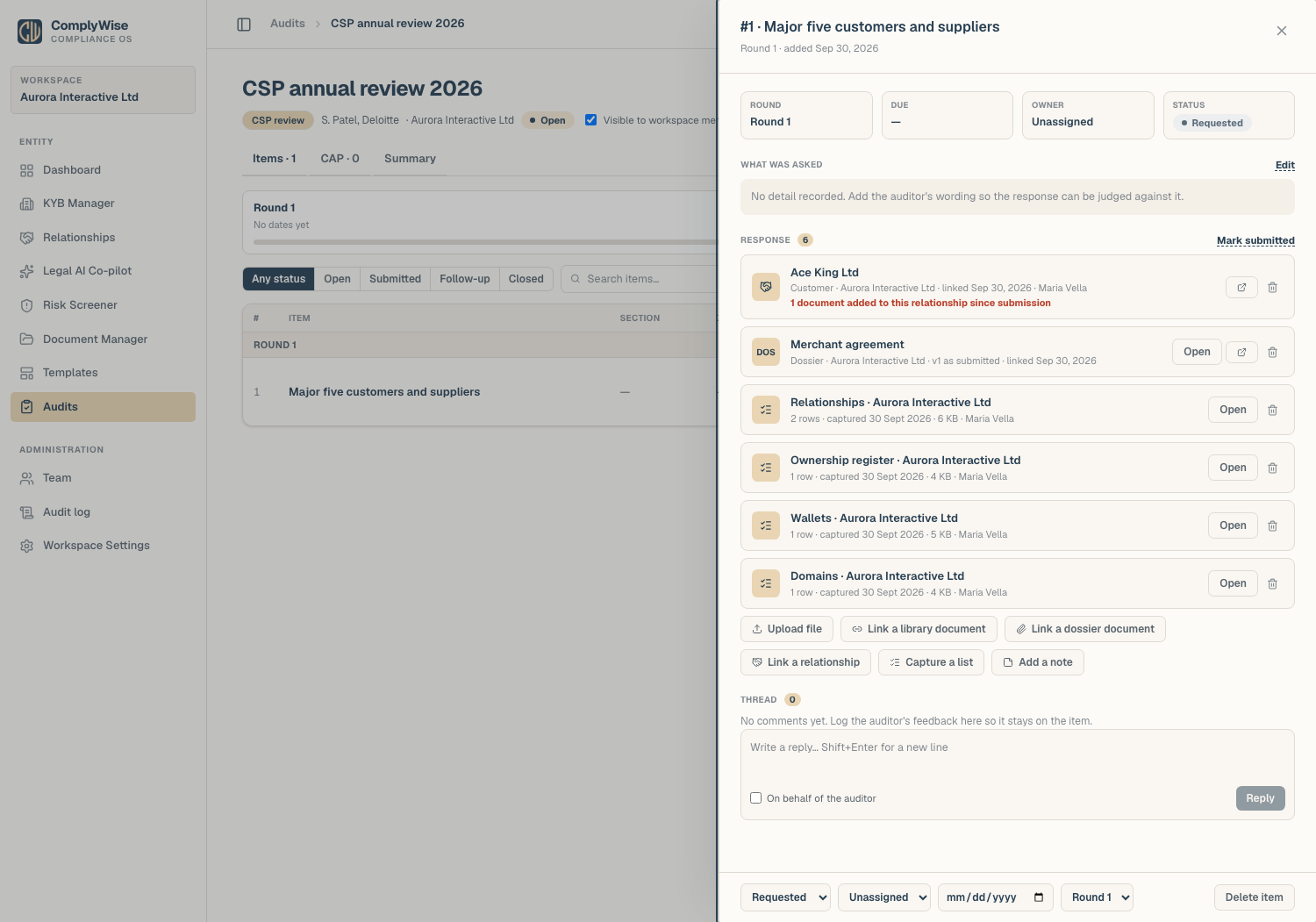
Click an item to open its drawer. The top row holds the Round, Due date, Owner, and Status. What was asked keeps the auditor's wording so the response can be judged against it; edit it if the request came verbally. Below that sit the responses, the actions to add one, and the thread.
Add a response
Six kinds of evidence go on an item:
- Upload file: a file that lives only in this audit (a spreadsheet, a reconciliation, an email export). Spreadsheets are accepted here.
- Link a library document: a document from the Document Library. The version current at that moment is pinned.
- Link a KYB Manager document: a document from an entity's KYB record, pinned to its current version.
- Link a relationship: pick the entity, then the party from the register. The documents held on that relationship (its relationship documents and the counterparty's KYB documents) are offered ticked; each one you keep is pinned as a KYB Manager document alongside the relationship link. The response records the party, its role, and the entity as they were at that moment.
- Capture a list: a dated snapshot of one of the entity's lists: Relationships (filter by role, for "top five customers"), the Ownership register, Wallets, or Domains. Tick the rows to include; the capture states how many of the available rows were selected and produces a PDF. A capture never changes afterwards; to update it, capture again.
- Add a note: an explanatory note that accompanies the response.
Each response shows who added it and when. Open shows the version as submitted or the captured PDF. Remove response deletes the entry; an uploaded file or captured snapshot is purged with it.
Changed since submission
Linked documents are pinned to the version you submitted. If a newer version is uploaded later, the response reads "v3 exists since submission" and the package Summary lists it under Documents changed since submission, so you know what to re-send. A linked relationship shows "N documents added to this relationship since submission" when new documents land on it after the link.
Submit and track
- Click Mark submitted once the item's evidence is complete; the status moves to Submitted.
- When the auditor comes back with questions, set the status to Follow-up and record their feedback in the thread.
- Close the item when the auditor accepts it.
The thread
Every item has a thread. Write a reply for your own team, or tick On behalf of the auditor and enter the auditor's name to log feedback they sent by email or said in a meeting; the comment is attributed to them. The thread stays on the item, so next year's copy-from-previous starts with the history intact.
Export the package
From the pack's Overview (or the Export button beside the tabs), choose what to include: which rounds, submitted items only, the summary page, and the CAP table. Internal notes and item threads never leave the workspace. Two formats:
- Summary PDF: the Overview on paper, dated, with page numbers.
- Full pack (ZIP): the summary, then one folder per round and item holding every response at the version you submitted (uploads by name, library and KYB Manager documents at their pinned version, captured lists as PDF, notes as text), plus the CAP as PDF and Excel. This is the file you upload to the auditor's portal.
Every export is recorded in the audit log.
Share a pack link with the auditor
When a firm works outside its own portal, give it a read-only link instead. On the package's Access tab, enter the auditor's name and email, tick what to include (the same choices as an export), set how many days the link lasts, add a message, and click Generate & email link. The link goes to the recorded address; when the auditor opens it they are asked for a one-time code sent to that same address, so nobody else can use it. The link is shown once; Email link again mints a fresh one (the old link stops working) and can extend the window.
The auditor sees the included items with View and Download per response, the summary page, the CAP table, and a Download everything (ZIP) button. Every open, view and download is logged against the link, and the Access log on the card shows it. Revoke ends access immediately.
Related articles
- Audits overview: packages, rounds, and statuses
- The corrective action plan: findings and actions after the fieldwork
- External links: the trust model behind auditor links
- Versions: how document versions work in the library