
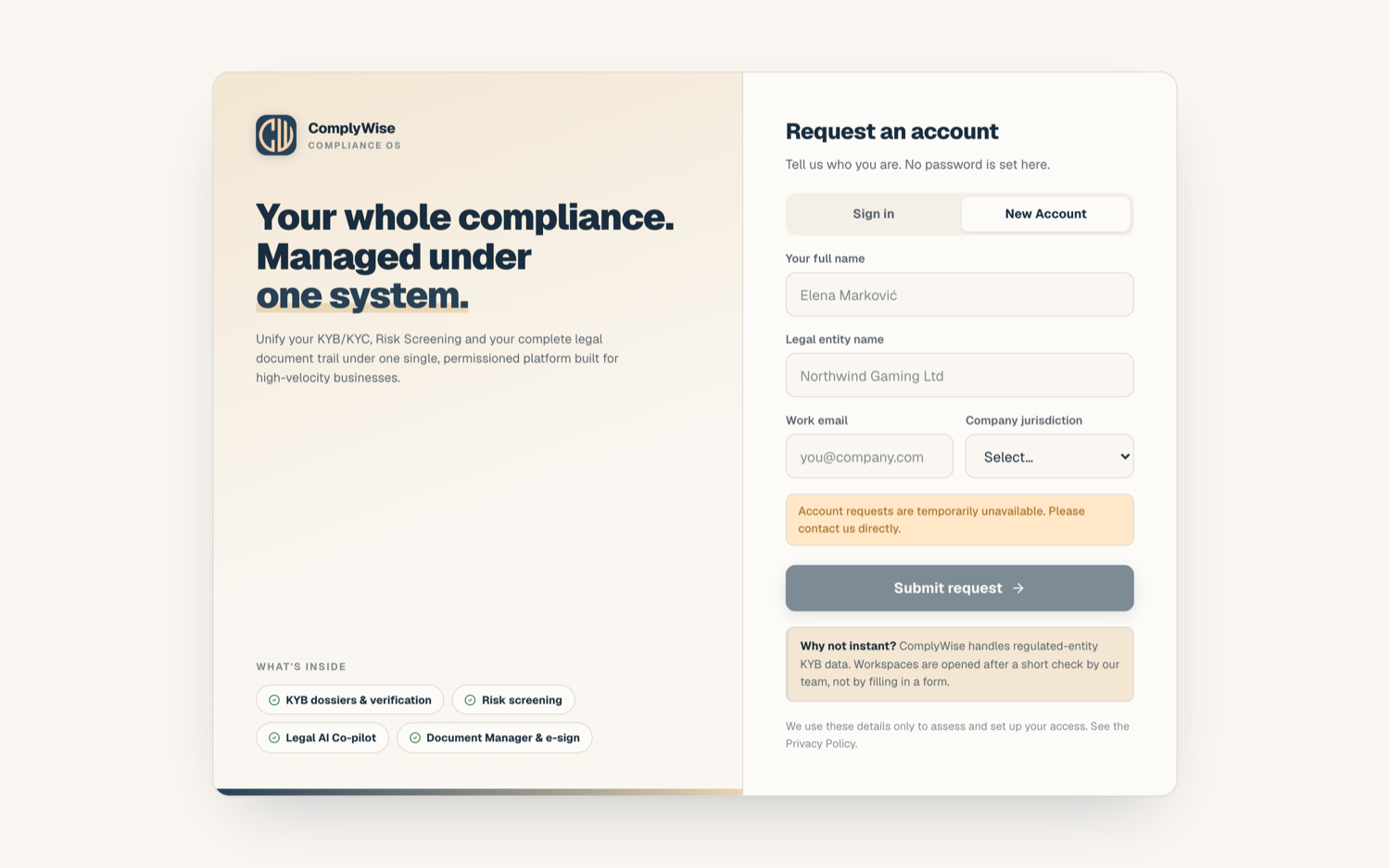
ComplyWise doesn't have open self-signup. New accounts start as an access request that a human reviews: if your request is approved, you receive an invitation to set up your workspace access.
Before you start
- Use your work email address. Requests are reviewed manually, and a company email helps the reviewer connect you to your organization.
- You won't set a password at this stage. That happens later, when you accept your invitation.
Submit a request
- Go to the ComplyWise login page.
- Open the New Account tab next to the sign-in form.
- Fill in the request form:
- Full name
- Legal entity: the registered name of your company
- Work email
- Jurisdiction: pick from the list, or choose Other if yours isn't listed
- Complete the quick security check on the form.
- Submit. You'll see a confirmation that your request has been received.
What happens next
- A member of the platform team reviews your request. This is a human review, not an automatic approval.
- If approved, you receive an invitation email with a link to set your password and sign in.
- If the reviewer needs more information, they may contact you at the email you provided.
There is no fixed review time. If you haven't heard back after a few business days, write to support@complywise.io and mention the legal entity name you submitted.
Troubleshooting
- The form says the security check didn't pass. Reload the page and try again. If it keeps failing, your browser or network may be blocking the check; try a different browser or write to support@complywise.io.
- You submitted twice. No harm done: duplicate requests are visible to the reviewer and are handled together.
- You already have an account. Use the sign-in form instead. Submitting a new request won't reset your password.
Related articles
- Accept your invitation: setting your password after approval
- First-run onboarding: your first minutes in the workspace
- What is ComplyWise?: what you're requesting access to