
ComplyWise can compare any two documents word by word: two versions of the same file, two different library documents, or a file straight from your computer. This article covers the views, the controls, and the redline exports.
Where to compare
- Inside a document: open it and switch to the Compare tab. It starts seeded with the document's versions.
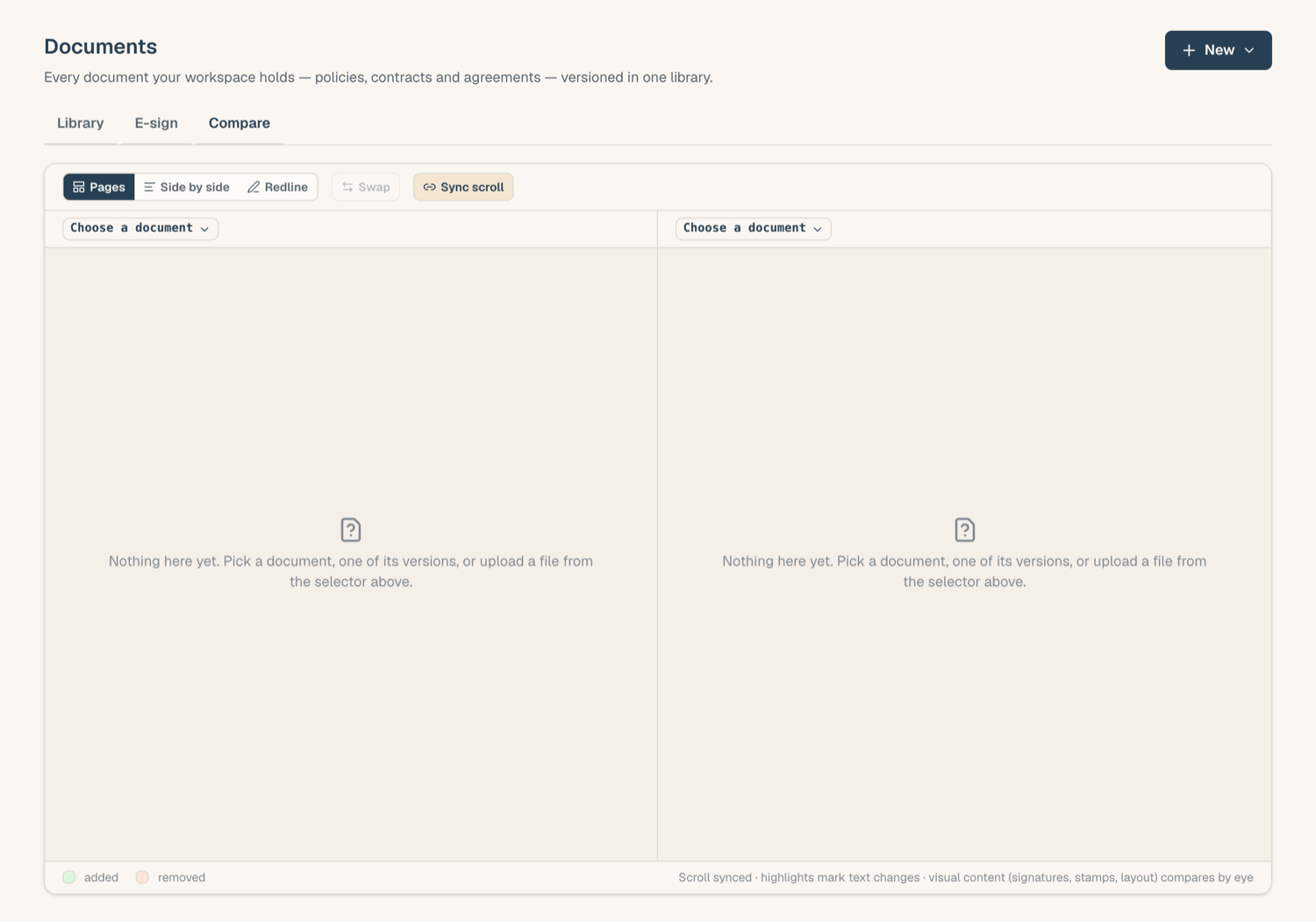
- Ad hoc: on the Documents page, open the Compare tab in the page tabs. Both sides start empty and you pick freely.
Pick the two sides
Each pane has its own picker. A side can be:
- any version of the current document
- another library document (any of its versions)
- an uploaded file from your computer
An uploaded file never leaves your browser: the comparison runs locally, so you can safely diff a counterparty's draft without storing it. If you decide to keep it, Add to library uploads it properly.
Use ⇄ Swap to exchange the sides; the labels always state exactly what each side is (title, version number, date, current or superseded).
Side-by-side view
The default view renders both documents page by page with word-level change highlights overlaid on the real pages. Controls:
- Previous / next change walks you through the differences in order.
- Synced scrolling keeps the panes aligned; toggle it off to browse independently.
- Shared zoom applies one zoom level to both panes, and go-to-page jumps both together.
- A Text toggle shows the same comparison as plain text.
If a side has no readable text (a scan, or a page that was redacted), it still renders visually and the view says honestly that text comparison isn't available for it.
Redline view
Redline shows the comparison as one flowing document: deletions struck through, insertions underlined, in reading order. It's the view lawyers expect, and it becomes the default whenever a Word document is on either side.
Export the redline
From the Export menu in Compare you can produce:
- Redline PDF: the flowing redline as a shareable PDF.
- Track-changes Word: a .docx carrying real tracked changes, so the recipient opens it in Word and accepts or rejects each change individually.
Both exports can include comments: open threads on the document ride along (as real Word comments in the .docx, as a notes section in the PDF). If the document has an e-sign envelope, only signer-visible threads are included; the menu states the scope.
Related articles
- Work with versions: the versions you'll be comparing
- Work with Word documents: Word sides and redlines
- The document workspace: the Compare tab in context