
A review table is a live grid: documents down the side, questions across the top, and the Copilot filling the cells with sourced answers. Use it to review a stack of contracts, policies, or vendor files against the same criteria at once.
Create a table
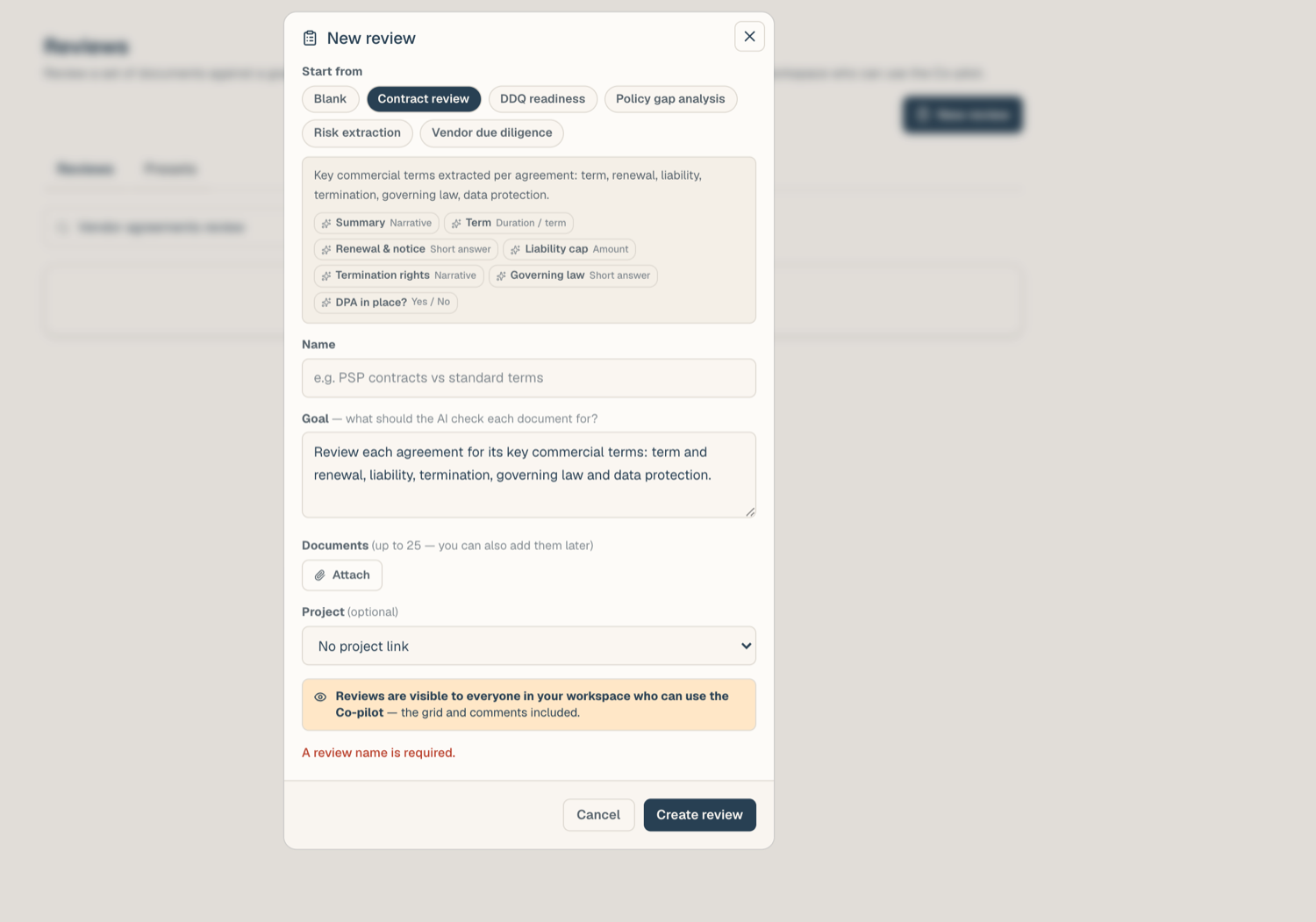
- Open Legal AI > Review Tables and click new review.
- Name the table and stage the documents to review. You can start from a preset or from scratch; a Summary column is seeded either way.
- The Copilot fills the grid one document at a time.
Columns
Columns come in two kinds:
- AI columns are typed, and the type tunes the extraction: short text, date, duration, party, amount, yes/no, classification (with your own options), or narrative. Yes/no and classification cells render as chips.
- Manual columns are typed by you; the AI never touches them.
The grid is live: add a document and only its row fills; add a column and only that column back-fills across existing documents. Nothing already answered is recomputed.
Trust but verify: sources
Every AI-filled cell records its source: the page and a verbatim quote from the document. Open a cell to read the quote, or open the document preview in place to check context. AI answers cannot be edited directly; if you disagree, flag the cell and record your view in a comment or a manual column.
Flags and comments
- Flags (red, yellow, green, grey) mark cells for follow-up; editors set them.
- Comments are open to any AI user, threaded per cell; authors own their comments and moderators can tidy up.
The table's conversation
Each table has one standing conversation: open it to ask questions across the table's documents ("which contracts auto-renew?"). Its answers are grounded in the live grid and the documents, and it shows a Grounded badge naming the review.
Metering
Filling costs 1 credit times the model multiplier per document call: one call covers a document's pending columns. Failed calls (an unreadable scan, a provider error) charge nothing and say No credits used. Manual columns, flags, and comments are free. The Fill with AI dialog carries a Model control showing each model's token limit, credit multiplier, and Zero Data Retention, plus the total credits the fill will spend. Table fills and per-document reviews share one remembered model, separate from your chat model.
Sharing
Review tables are visible workspace-wide to AI users. Members without edit rights read the grid, sources, and comments, and can comment, but cannot change columns, documents, or flags.
Related articles
- Review presets: reusable column sets
- AI review a single document: the one-document report
- AI credits: what is metered and what is free