
Your profile holds everything personal to you in ComplyWise: photo, name, password, timezone, your saved e-signature, and which notifications reach you. It has two tabs, Account and Notifications.
Open your profile
- Click your avatar in the corner of the app.
- Choose your profile from the menu. You land on the Account tab.
The Account tab
Photo and name. Your photo sits beside your name at the top of the card. Upload or replace the photo, edit your full name, and pick your timezone (it starts from the one your browser reports). Click Save profile when the form shows changes.
Signed in as. Below a divider you'll see the email you sign in with and your role in the current workspace. These are shown for reference; your email and role are managed by your workspace admin, not here.
Password. Enter a new password and confirm it, then click Update password. The eye icon on each password field shows or hides what you typed.
Signature. Your saved e-signature is reused with one click wherever you sign in the app: in the contract builder and when signing documents sent to you while signed in. The row shows a preview with Replace and Remove. Setting or replacing it opens the signature dialog with three tabs:
- Type: type your name; it renders in a signature script.
- Draw: draw with your mouse, trackpad, or finger.
- Upload: upload an image of your signature (PNG, JPEG, or WebP, up to 8 MB); it's cleaned up and stored as an image.
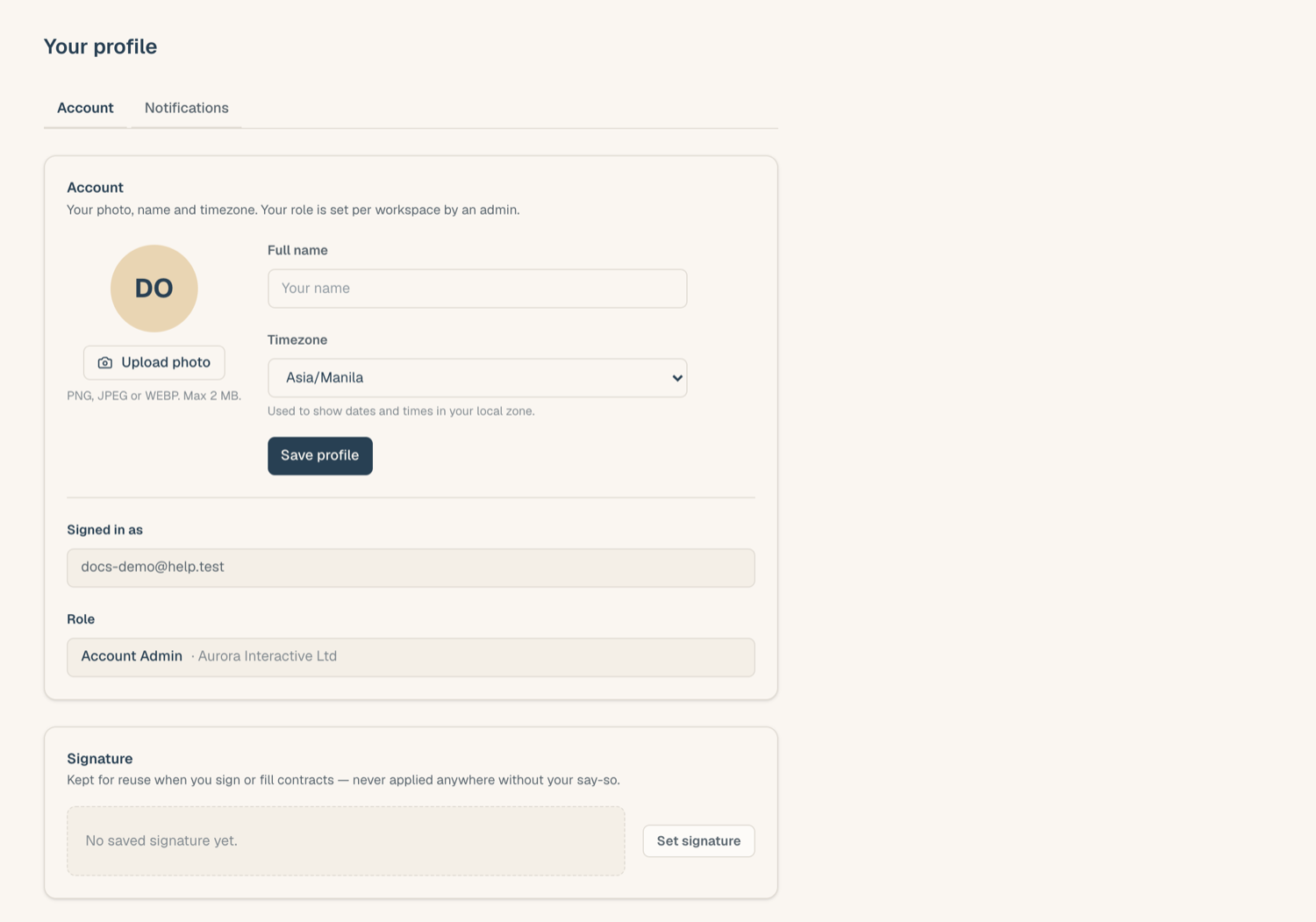
Your saved signature is private to your account. Removing it doesn't affect documents you already signed.
The Notifications tab
- Open the Notifications tab at the top of the profile page.
- You'll see a matrix: one row per notification kind (e-sign activity, review decisions, mentions, expiry alerts & digest, and so on), with two toggles per row: In-app and Email.
- Switch a toggle off to mute that kind on that channel. Everything starts on by default.
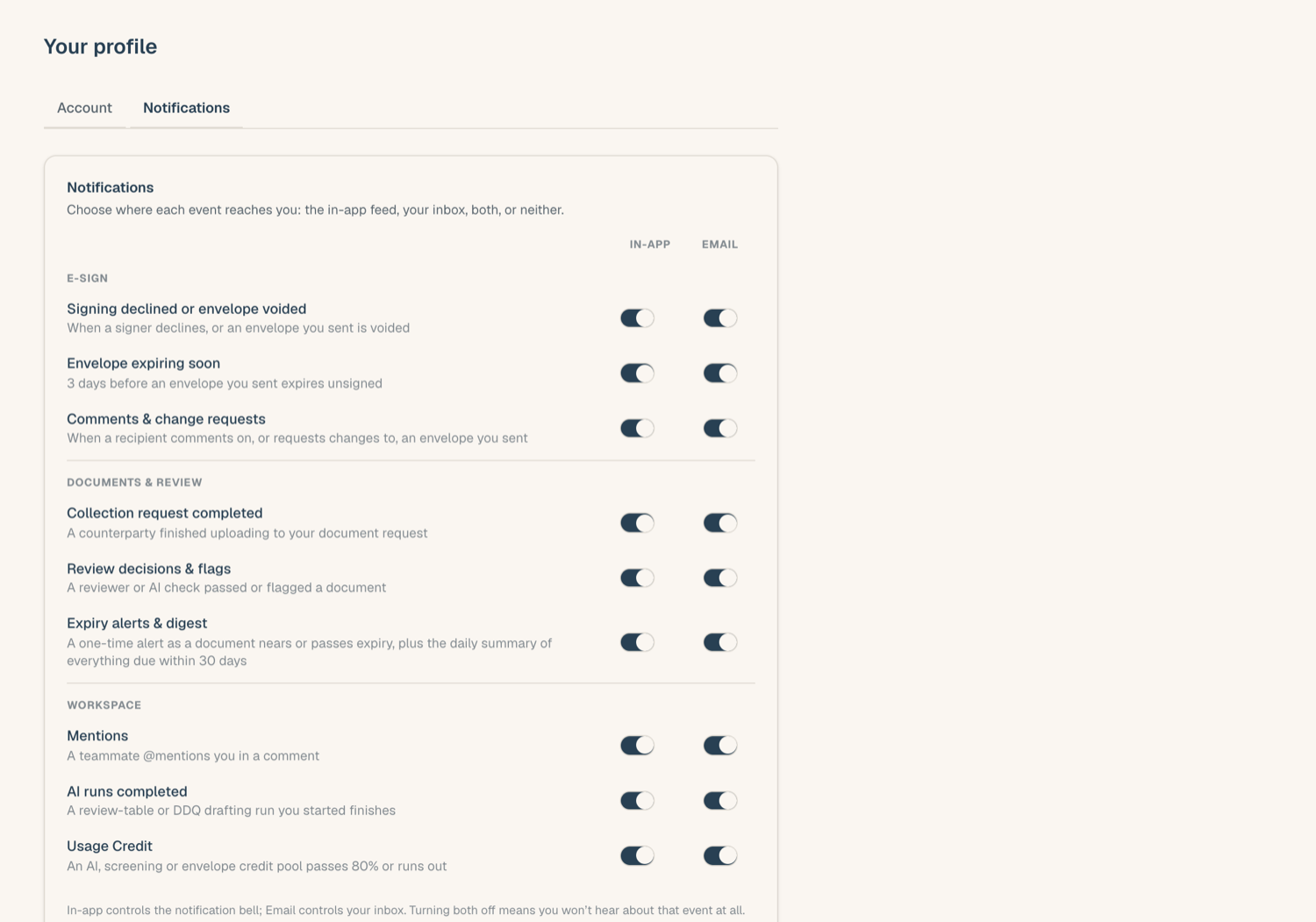
Muting the in-app channel keeps that kind out of your notification bell; muting email stops the messages but the events still happen and stay visible in the app itself. Some administrative kinds only appear for roles that can act on them.
Tips
- Set the timezone early. Dates and times across the app render in your chosen timezone.
- Save a signature before your first contract. It turns every future signing into one click instead of a draw-it-again moment.
- Don't mute both channels for expiry alerts unless someone else on your team watches them: they're the early warning before documents lapse.
Related articles
- Navigating the app: where the bell and profile menu live
- Accept your invitation: first sign-in and password setup
- Roles and permissions: what your role controls