
The Settings page is where a Workspace Admin shapes how the workspace behaves: its name, the default document checklist, the documents expected on each kind of relationship, how documents are verified, retention safeguards, screening defaults, and CRM currency. This article walks through each control.
Before you start
You need the Workspace Admin role. Other members can use the workspace but not change its settings.
A note on saving: every form here is change-aware. A Save button only appears once you've actually altered something, and disappears again if you revert or after a successful save. No visible Save button means nothing is pending.
Workspace name
- Open Workspace Settings in the sidebar.
- Edit the Workspace name field.
- Click Save when it appears.
The name is what your team sees in the workspace switcher and what counterparties see alongside your branding.
Document checklist
The Entity Docs tab holds the default checklist your entities' KYB records are built from, plus any named templates.
- Unless your workspace sets its own, the checklist is the Platform default, shown with that chip. It is maintained by the platform team, and an edit there reaches every workspace still inheriting it.
- To diverge, fork the platform default into your own. The card then reads Your company and you maintain it yourself; the platform's later edits stop reaching you.
- Named templates cover jurisdiction-specific or one-off checklists; apply one to a company from its KYB record.
- Browse library opens the full list of document types, where you can add custom ones.
Relationship documents
The Relationship documents tab sets which documents a relationship of each role is expected to carry, on two sides: the paperwork the relationship itself produces (the agreement, an account opening letter) and the counterparty's own KYB documents (its certificate of incorporation, licence). The table shows one row per role (PSP, EMI and Bank share a row while their sets match; Customer, Downline, Supplier, Partner, and Other have their own) with each list, (required) marked, and a chip reading Inherited from platform or Customised.
- Click Edit on a role to add items from the catalogue, switch each between Required and Optional, reorder, or remove. Save appears only once something changed.
- A role you customise replaces the platform set for that role; untouched roles keep inheriting the platform default, including later changes to it.
- Reset to platform default on a customised role removes your own set and restores the inherited one. Documents already on file and placeholders already on existing relationships are unaffected.
The expected documents appear as placeholders on every relationship of that role; see Documents on a relationship.
Verification recipe
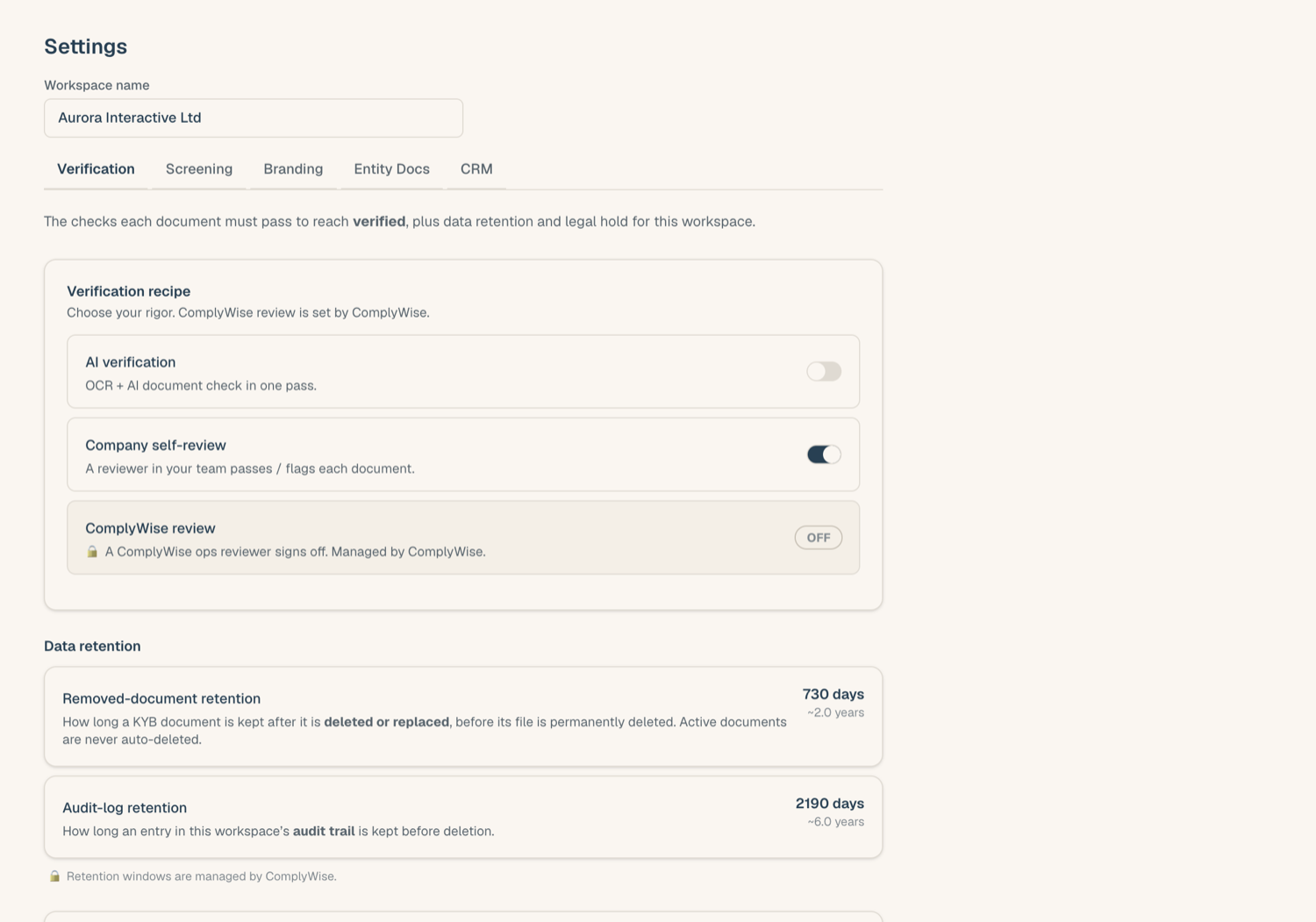
The recipe decides which checks a document goes through after upload: self-review by your own team, an automated AI check, or a compliance review by the platform team (that last step, where required, is controlled at platform level and shown locked). Toggle the checks you want and click Save recipe.
Changes apply to documents verified from now on; they don't rewrite past decisions. See Upload documents into your KYB record for how verification plays out on a slot.
Legal hold
Legal hold suspends purging entirely for your workspace: while it's on, soft-deleted documents are retained regardless of the normal retention window. Turn it on when an investigation or audit requires preserving records, and off again when the matter closes. The retention window itself is platform-managed.
Screening auto-screen
If your workspace has the Risk Screener enabled, the auto-screen toggle controls whether newly added items are screened automatically or only when someone runs a screen by hand. Screening runs draw on your screening credits either way; see Credits and entitlements.
CRM base currency
If your workspace uses the CRM, set the Base currency that opportunity values are displayed in. This is a display default; it doesn't convert existing figures.
Related articles
- Invite and manage members: team and roles live on their own page
- Brand your external surfaces: the Branding tab of Settings
- Credits and entitlements: limits and modules, and who to ask about them