
The prompt library holds reusable prompts your workspace shares; skills are lenses (tone or jurisdiction framing) you switch on per conversation. Both live in the Copilot composer, alongside an Improve button that rewrites a rough prompt for you.
Use a prompt from the library
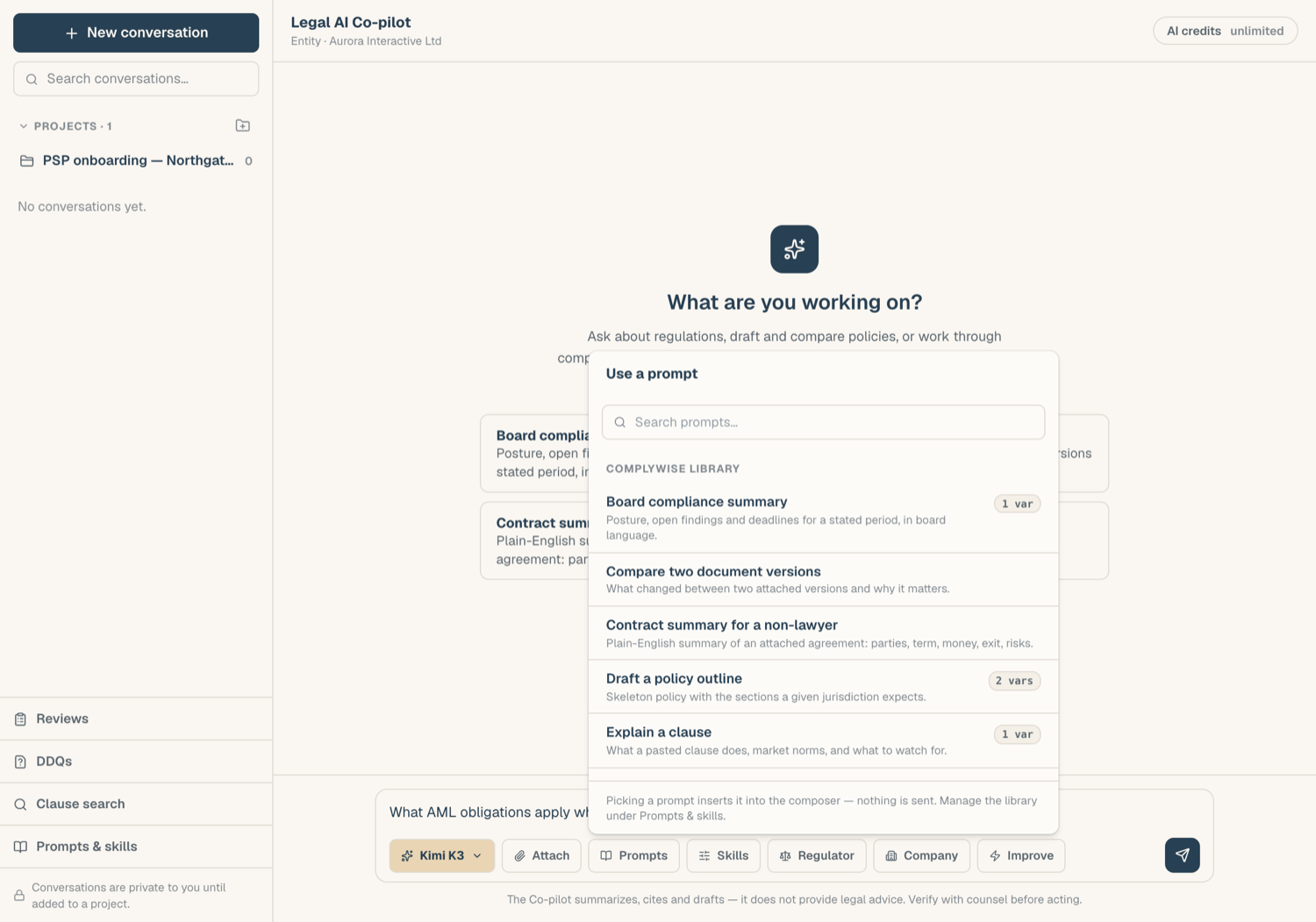
- In the composer, open the Prompts picker, or type / to trigger it.
- Pick a prompt. Platform-provided prompts and your workspace's own prompts are both listed.
- If the prompt contains {{variable}} placeholders, a fill dialog opens: enter a value for each variable before sending. Unfilled placeholders trigger a warning so you never send a template by accident.
You can also work from the library page itself, under Legal AI > Prompts & skills. Every row carries two actions:
- View opens the full text read-only: the prompt body or the skill's instructions, its variables, and who wrote it. You no longer need to duplicate a platform prompt to read it.
- Use opens a new chat with the item already staged. A prompt with variables asks you to fill them first; a skill arrives as a chip on the new conversation. Nothing is sent until you press send.
Create and save prompts
- From scratch: open the library at Legal AI > Prompts & skills and create a prompt. Use {{curly}} tokens for the parts that change each time.
- From chat: hover one of your messages and choose save as prompt.
Anything you save is visible to everyone in your workspace; the editor says so before you save. Any AI user can create prompts. Editing or deleting someone else's prompt requires the prompt moderation permission, which account admins and editors hold by default; you can always edit your own.
Switch on skills
Skills adjust how the Copilot answers: a jurisdiction lens, a plain-English tone, a formal regulator tone, and so on.
- Open the Skills popover in the composer.
- Toggle up to 3 skills per conversation. Each shows as a chip.
- Skills picked before the first message apply from the first answer.
Skills never override the Copilot's grounding rules; they shape style and framing. Workspaces can author their own skills in the same library, under the same visibility and moderation rules as prompts.
Improve a prompt
The Improve button (the lightning icon) rewrites your draft prompt into a sharper one:
- Type a rough prompt in the composer.
- Click Improve. A compare dialog shows your original next to the improved version.
- Keep either one.
Improve is metered at 1 credit per use and runs on a fixed lightweight model regardless of your model selection. At zero credits the button is disabled.
Related articles
- Chat basics: conversations, models, and threads
- Projects: default skills for a whole matter
- AI credits: what is metered and what is free