
Once an envelope is sent, the document, recipients, and fields are frozen by design: what people sign must be exactly what went out. This article covers what you can still do while signatures are outstanding, from the envelope panel on the document's E-sign tab.
The links panel
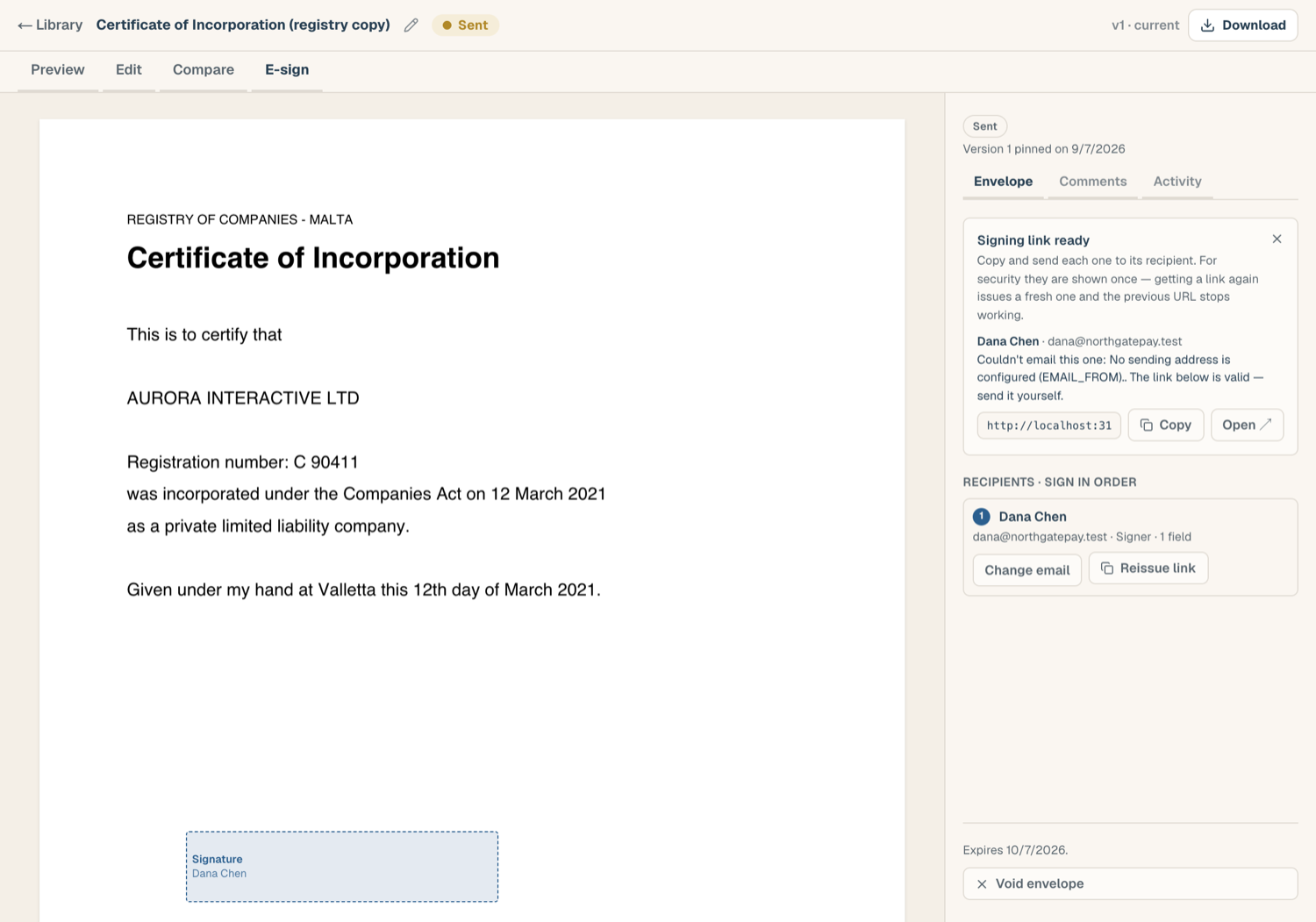
Each live recipient has a row in the links panel:
- Copy puts the recipient's current link on your clipboard (or use Copy all).
- Open opens the link in a new tab, useful for checking what a recipient sees.
- Reissue mints a fresh link. The panel warns you explicitly: reissuing kills the existing link, so anyone holding the old one can no longer use it. Reissue when a link may have leaked or a recipient reports theirs isn't working.
Add or change a recipient's email after send
If a recipient was added without an email, or with the wrong one, you can fix it while they haven't yet acted and the envelope is still open:
- Find the recipient's card in the envelope panel.
- Click Add email (or Change email), enter the address, and save.
- A fresh invitation goes to the new address. For signers, the previous link is retired and the invitation carries a new one.
Resends are throttled: there's a short cooldown per recipient and a daily cap per envelope, so a stuck invitation can't turn into a flood.
Activity timeline
The Activity tab lists every recorded event: sent, opened, consented, signed, declined, links reissued, comments, and changes requested, each with a timestamp. This is the same trail the final certificate draws on.
Comments with signers
The document's comment threads work while the envelope is live. Each thread has an audience:
- Internal threads are visible only to your workspace.
- Signer-visible threads are shared with the envelope's recipients, who can reply, and add threads of their own, from their signing page.
You can publish an internal thread to signers, but not the other way around: once signers may have seen a thread, it stays visible to them.
The changes-requested banner
A signer can use Request changes instead of signing. This is advisory: the envelope stays open, and nothing is cancelled automatically. You'll see an amber banner and chip on the recipient, a notification, and the signer's note as a signer-visible comment thread.
To act on it:
- Read the note (the banner's View comments takes you there).
- If the change is warranted, void the envelope: sent envelopes can't be edited, so voiding is how you unfreeze the document.
- Edit the document, then use Void & clone (or clone after voiding) to get a fresh draft with the same recipients and fields, and re-send. Comment threads live on the document, so the conversation survives the new round.
See Void, clone, and re-send for the details.