
When a counterparty opens one of your links, the page should look like it comes from you. The Branding tab puts your logo, accent color, and support contact on every external surface your workspace exposes.
Before you start
You need the Workspace Admin role to edit branding. Until you set anything, external pages show neutral platform styling, so branding is optional but worth five minutes.
Set up your branding
- Open Workspace Settings in the sidebar and switch to the Branding tab.
- Upload a logo: PNG, JPEG, or WebP, up to 2 MB. Square images work best; the logo replaces the neutral monogram on external pages.
- Pick an accent color, either from the swatches or as a hex value. ComplyWise checks the contrast automatically: a color that would make button text unreadable is refused with an explanation, so pick a reasonably dark shade.
- Fill in your support email and any support links, so recipients know who to contact about the content you've shared.
- Watch the live preview update as you type, then click Save when it appears.
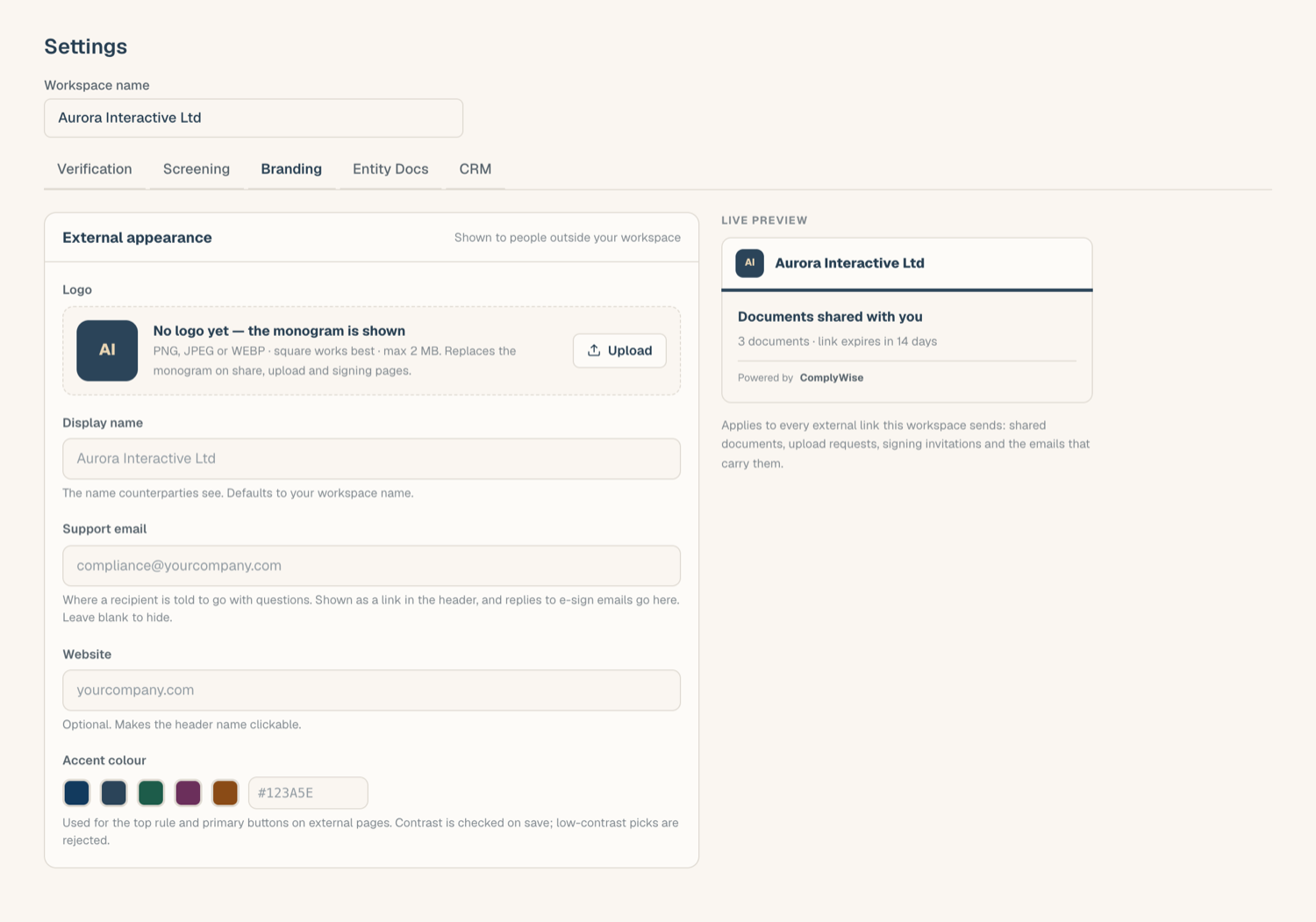
Where counterparties see it
Your branding appears on every external surface tied to your workspace:
- Share pages, where a bank or partner reads your KYB package.
- Collection pages, where a vendor uploads documents to you.
- Signing pages, where parties complete an e-sign ceremony.
- Outbound emails to those recipients, including share invitations and the one-time codes that open a gated share link: they arrive under your workspace name, shown as "via ComplyWise", carry your accent styling, and reply to your support inbox.
Each page keeps a small "Powered by ComplyWise" line in the footer, and a dead or unknown link always shows neutral styling so nothing about your workspace leaks to someone probing random links.
Changing or removing branding
Replace the logo or color at any time; live links pick up the change immediately, since branding is applied when the page loads, not when the link was minted. Removing the logo returns external pages to the neutral default.
Related articles
- External links: share, collect, and sign: the surfaces branding applies to
- Share your KYB package: the most common branded page
- Workspace settings: the other Settings tabs