
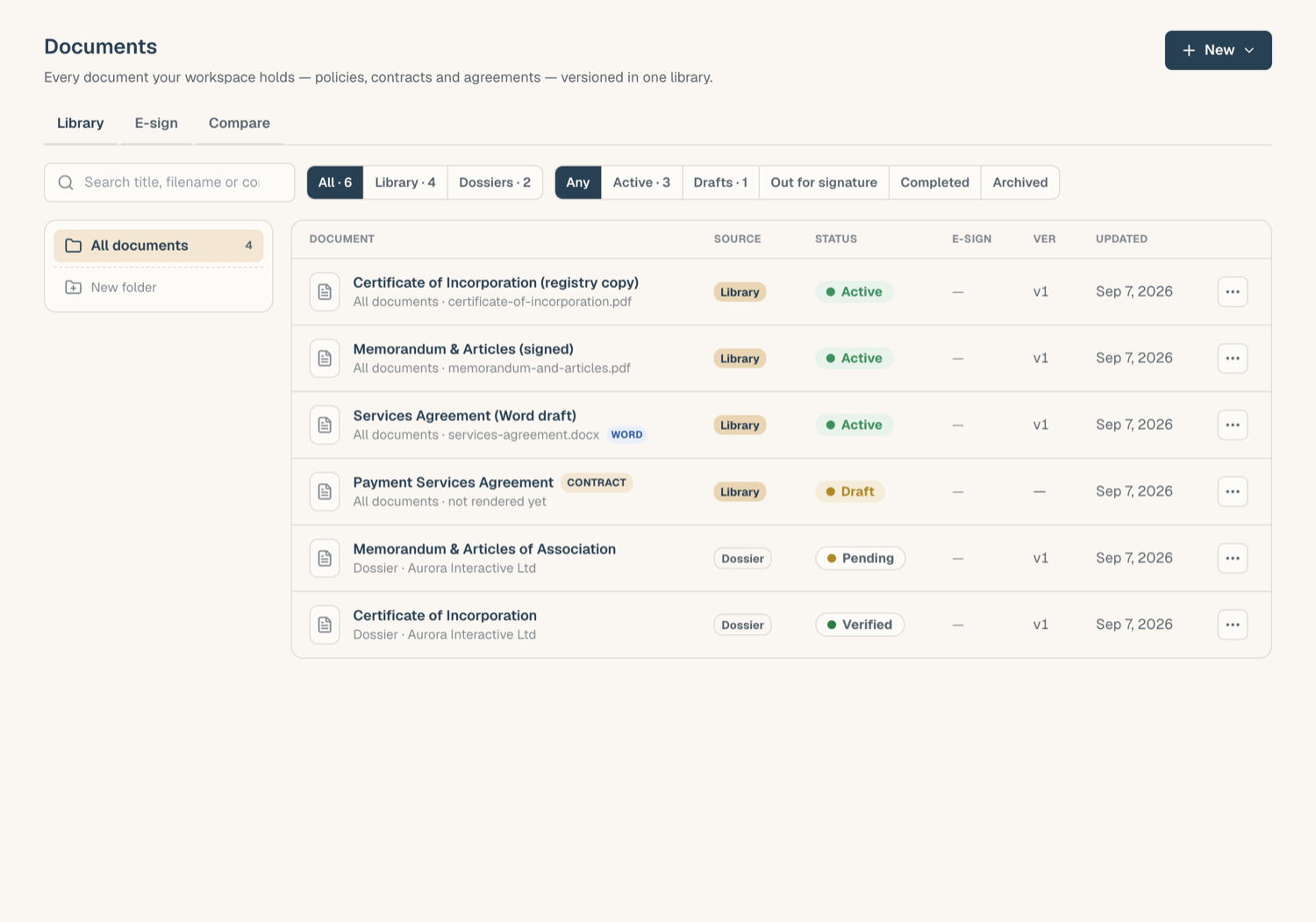
The Documents page is your workspace's library: every contract, policy, and working file in one place, alongside a read-only view of the evidence already filed in your entities' KYB records. This article walks through the page so you know where everything lives.
Folders
The left rail is a folder tree. Folders nest, so you can mirror whatever structure your team uses (by counterparty, by year, by document class).
- Create a folder from the + New menu or inline in the rail.
- Hover a folder to rename it, add a subfolder, or delete it.
- Deleting a folder never deletes documents: the confirmation dialog explains exactly what moves where before anything happens.
Filters and search
Above the table, segmented filter groups narrow the list by lifecycle:
- Active: the default working set
- Drafts: contracts still being built
- Out for signature: documents with a live e-sign envelope
- Completed: signed and countersigned documents
- Archived: kept but out of the way
A search box matches document titles. If you need to find text inside documents, use Clause Search in the Legal AI section instead.
KYB Manager documents
Evidence uploaded into an entity's KYB record also appears in the library as read-only rows with a source chip naming the entity it belongs to. You can preview these and open them in the KYB Manager, but you edit them from the KYB Manager itself. See File a document into the KYB Manager for how documents move between the two.
Adding documents
Everything new starts from the single + New menu in the page header:
- Upload files: add PDFs, images, or Word files (you can also just drag files onto the page)
- New contract: start a document in the contract builder
- New folder
Reading a row
Each row carries chips that tell you its state at a glance:
- a status chip (Draft, Active, Archived, and so on)
- an e-sign chip when an envelope exists, including a red Changes requested state when a signer has asked for edits
- an AI review chip when the document has an AI review report; it pulses while a review is running
Opening a document
- Click a row to open the document in its own workspace, with preview, editing, compare, and e-sign in one place.
- Press Space on a highlighted row for a quick peek without leaving the list.
Related articles
- The document workspace: one page per document
- Work with versions: history, restore, and deletion
- File a document into the KYB Manager: move documents between the library and KYB records