
A review preset is a saved set of checks: the questions you ask of every contract, every policy, every vendor file. Presets drive both review tables (as columns) and per-document AI reviews (as the findings a report returns), so your workspace reviews the same way twice. A preset is a starting point, not a cage: you can edit its checks for a single run and save the better set back.
Built-in presets
The platform ships presets for common jobs, including contract review, policy gap analysis, risk extraction, vendor due diligence, and DDQ readiness. Your workspace can add its own alongside them. Find them all under Legal AI > Review Tables > Presets.
Start a review from a preset
- Open Legal AI > Review Tables and click new review.
- In the Start from picker, choose a preset.
- The preset's columns replace the default Summary seed, and the table fills as usual once you add documents.
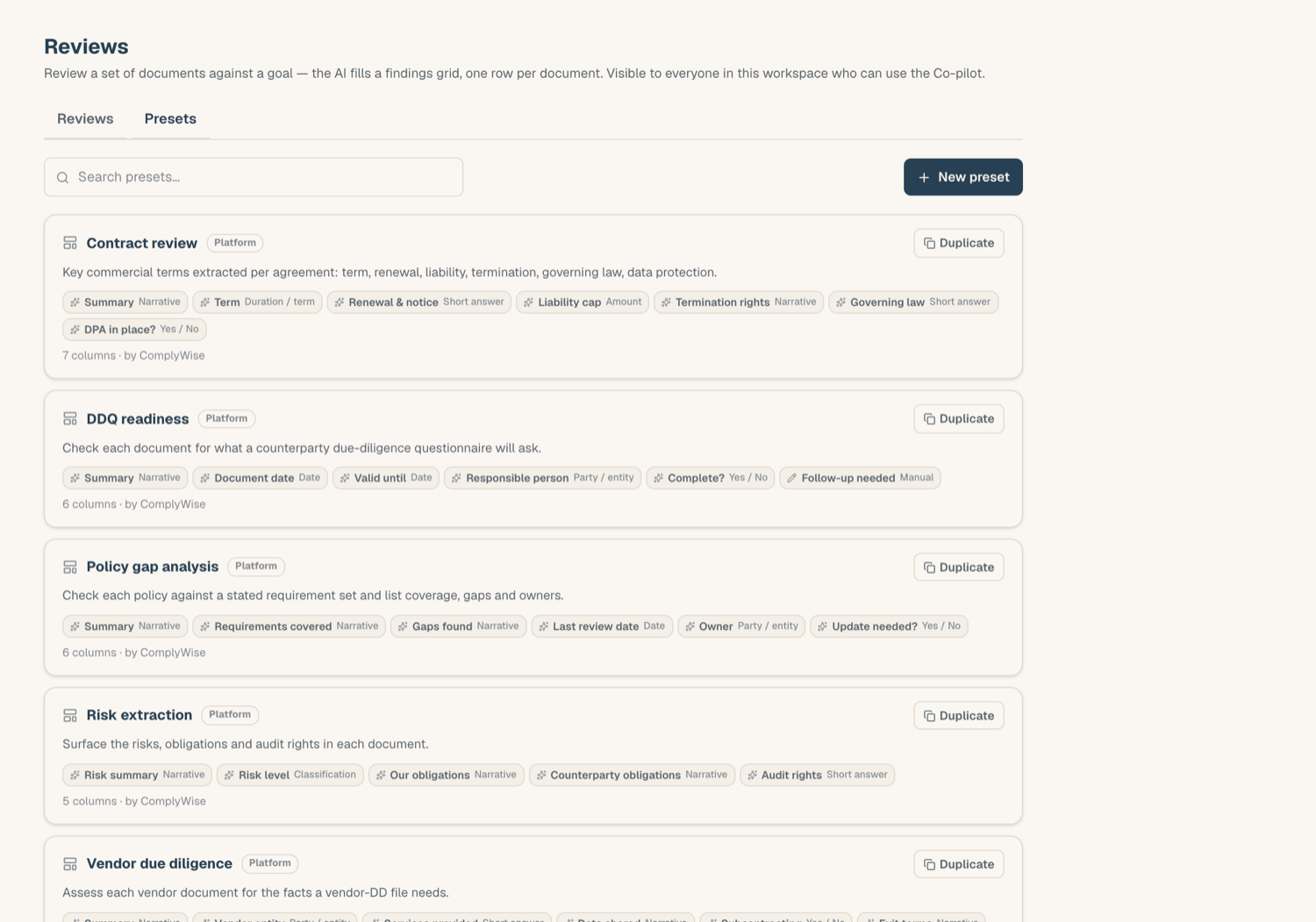
Apply a preset to an existing table
- Open the review table.
- Choose Apply preset and pick one.
- The preset's columns are copied into the table. Columns whose titles already exist are skipped as duplicates, and the result tells you how many were added versus skipped. If the table is near its column cap, the dialog says so honestly.
- You are offered a back-fill so the new columns populate across the documents already in the table.
Applied columns are copies, not links: editing the preset later never changes tables that used it.
Save your own preset
Built a grid worth reusing?
- In the table, choose Save as preset.
- Name it. The preset captures the columns only: their titles, types, and options. Cells, flags, comments, and documents are never part of a preset.
- It becomes available to your whole workspace.
Platform presets are read-only for workspaces, but you can duplicate one into your workspace and edit the copy. Editing or deleting someone else's workspace preset requires the moderation permission; your own presets are always yours to edit.
Tips
- Keep presets focused: a handful of sharp columns beats a wall of vague ones, and leaves cap headroom for table-specific additions.
- Pair a preset with a manual column or two (reviewer verdict, next action) so the grid captures your judgment as well as the AI's extraction.
Related articles
- Review tables: how the live grid works
- AI review a single document: presets also drive per-document reviews
- AI credits: what is metered and what is free