
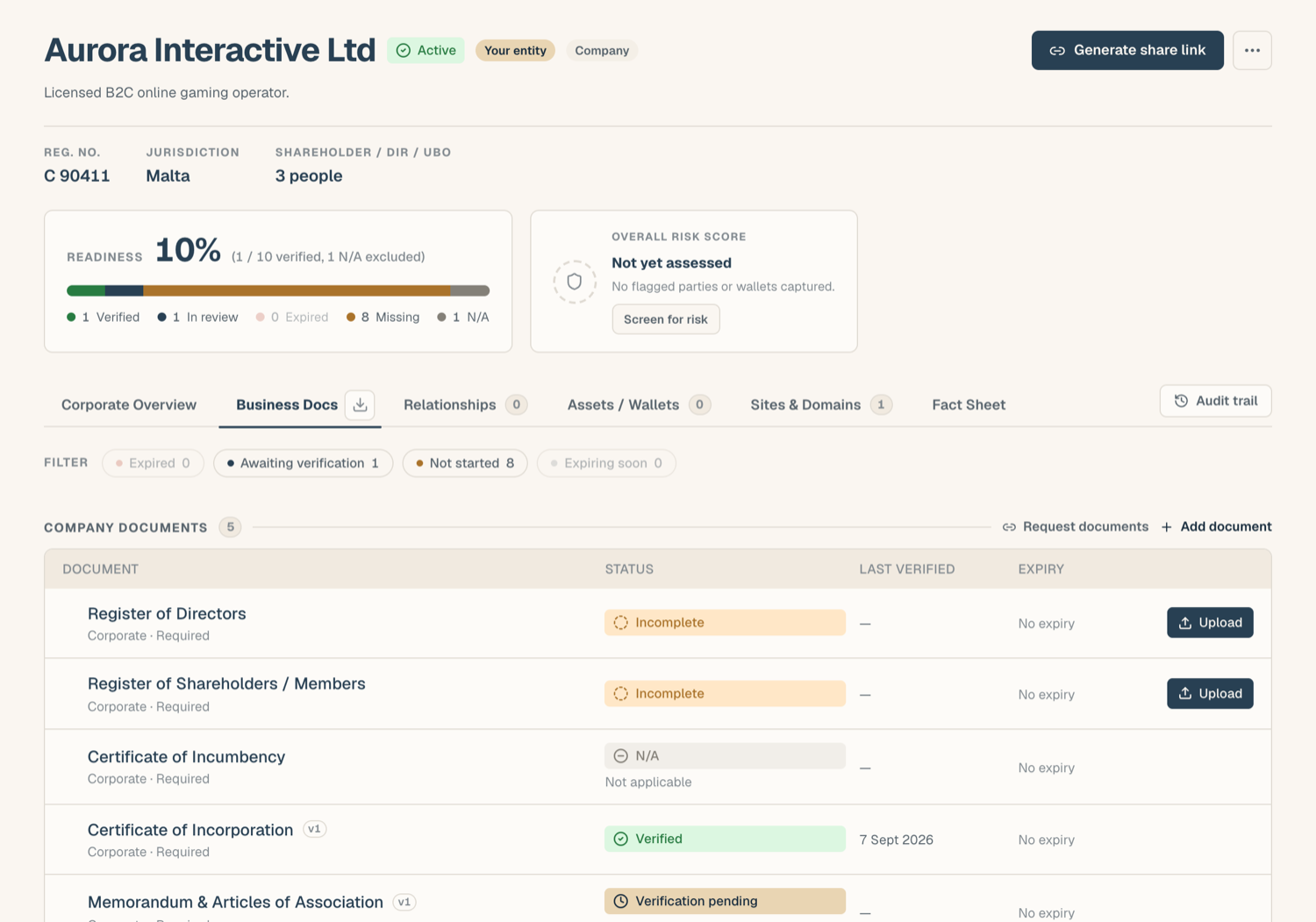
Every document slot in the KYB Manager carries a status chip. This is the full reference: what each status means, which checks drive it, and how expiry works.
The statuses
| Status | Meaning | What to do |
|---|---|---|
| Incomplete | No document uploaded yet | Upload the document, or mark the slot N/A if it doesn't apply |
| Pending | Uploaded, but no verification check has passed yet | Wait for checks to run, or complete your self-review |
| Needs attention | A check flagged the document | Open the drawer, read the flag and its comment thread, fix and re-upload or respond |
| Partially verified | Some checks have passed, others are still outstanding | Nothing wrong; the remaining checks (for example a platform review) haven't finished |
| Verified | Every check in your workspace's verification recipe has passed | Nothing; the slot counts fully toward readiness |
| Stored | The document is held for reference only; this document type is collect-and-store, so it is kept but not verified | Nothing; upload a newer version if it changes |
| Expired | The document's validity has lapsed | Upload a renewal to the same slot; the old file stays in history |
| N/A | Marked not applicable to this business | Nothing, unless circumstances change; it's reversible |
Which checks drive the status
What "verified" requires depends on your workspace's verification recipe, set at workspace level. A recipe can include any combination of:
- Self-review: someone in your workspace with review rights confirms the document is correct.
- AI verification: an automated check reads the document and passes it or raises a flag with a reason.
- Platform review: the platform's compliance team reviews the document. While this step is outstanding you'll see "Awaiting review"; if the reviewer flags it, the document moves to Needs attention.
A slot only reaches Verified when every check the recipe requires has passed. If your recipe has no checks for a document type (collect-and-store), the slot shows Stored instead. See Verification & review for the workflow.
What a share-link recipient sees
Statuses are softened for outside readers. "Needs attention" is never shown on a share link: a document whose checks have only raised a flag reads Verification pending, and one where some checks have passed reads Partially verified. Switch Show status to recipient off on the link if you would rather share no statuses at all.
How expiry works
A document type expires one of two ways:
- Printed expiry date: the document carries its own expiry (a passport, a licence). ComplyWise reads that date and counts down to it. These types never get a calculated date.
- Freshness window: the document carries no expiry but must be recent (a proof of address, a register, a certificate of good standing). Save an issue date and ComplyWise fills the expiry for you as issue date plus the window, tagged issue date + 3 months beside the value. While it stays derived it follows the issue date, so correcting the issue date moves the expiry with it. Type your own expiry, or clear it, and the date becomes yours: ComplyWise stops recalculating it.
You are alerted 30 days before, 7 days before, and again when the document expires; a daily digest also summarizes upcoming expiries. Uploading a renewal to the same slot resets the clock. If an expiry warning is expected and accepted, you can snooze it: see Mark N/A & snooze.
Related articles
- Verification & review: the checks ledger, flags, and comments
- Upload documents into your KYB record: getting documents into slots
- Mark N/A & snooze: handling inapplicable types and expected expiries