
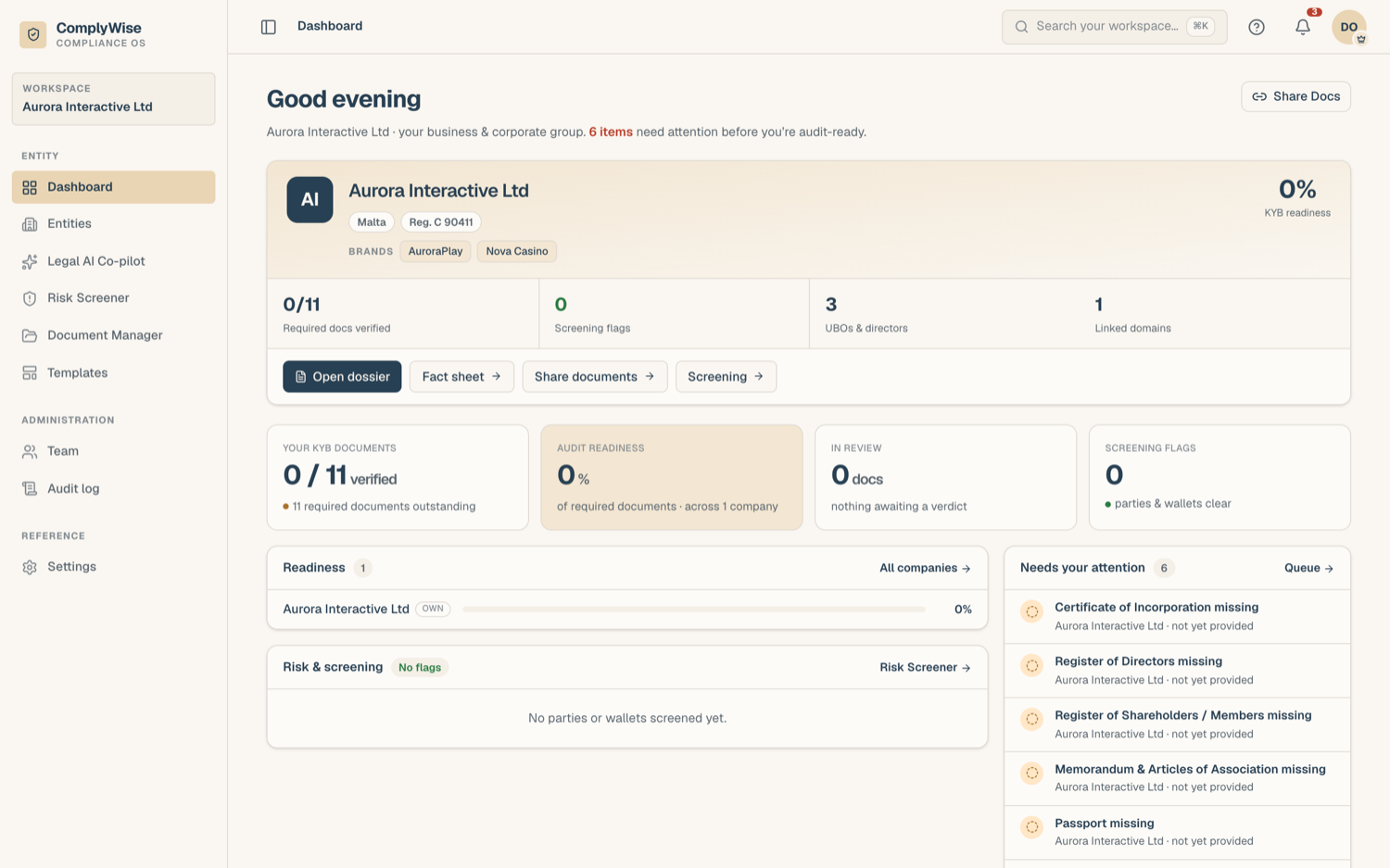
ComplyWise is organized around a left sidebar, a global search, a notification bell, and your profile menu. This page maps the layout so you always know where to look.
The sidebar
The exact set of items depends on which modules are enabled for your workspace, which of those your administrator granted you, and what your role can use, but a fully enabled workspace shows:
- Dashboard: your company card, readiness, and what needs attention.
- KYB Manager: every business entity you manage, each with its KYB record; review tasks live here too.
- Relationships: the workspace register of customers, suppliers, PSPs, banks, and partners, and each entity's relationships with them.
- Risk Screener: sanctions, PEP, and watchlist screening for entities and people, plus wallet screening.
- Document Manager: the workspace document library, e-sign, and comparison tools.
- Templates: reusable contract templates you can fill and make your own.
- Audits: audit packs, the evidence submitted against each request, and the corrective action plan.
- Legal AI Co-pilot: AI chat grounded in your documents, plus review tables, DDQs, and clause search.
- Team: workspace members, roles, and invitations.
- Audit log: the record of who did what (visible to roles that hold audit access).
- Workspace Settings: verification, screening, and branding (Workspace Admins).
If a listed item opens a page saying the feature is not enabled for your workspace, the module simply hasn't been switched on: contact the platform team to ask about it.
Global search
Press ⌘K (Ctrl+K on Windows) anywhere, or click the search field, to search your workspace. Results are grouped by type, and you can narrow to one type with the filter row.
- Search covers entities, documents, and people (and CRM records where enabled).
- It matches names and titles, not the text inside documents. To search inside document text, use clause search in the Legal AI Co-pilot (where enabled).
- Recent searches reappear next time you open the palette, and Enter opens the top result.
The notification bell
The bell in the top bar collects what's addressed to you: review decisions, document expiry alerts, e-sign activity, mentions, and more. Unread items carry a badge, items needing action are pinned to the top, and Mark all read clears the count. Clicking a notification takes you to the relevant place and marks it read. You control which kinds reach you, in-app and by email, from your profile's Notifications tab.
The profile menu
Your avatar in the corner opens the profile menu: your profile (photo, password, saved signature, notification preferences) and sign out. If you belong to more than one workspace, the workspace switcher in the sidebar moves you between them.
Related articles
- What is ComplyWise?: the modules in one page
- Manage your profile: account settings and notification preferences
- Roles and permissions: why some items may be hidden for you