
Every library document has its own workspace page: one place to read it, edit it, compare it, and send it for signature. Click any row on the Documents page to open it.
The header
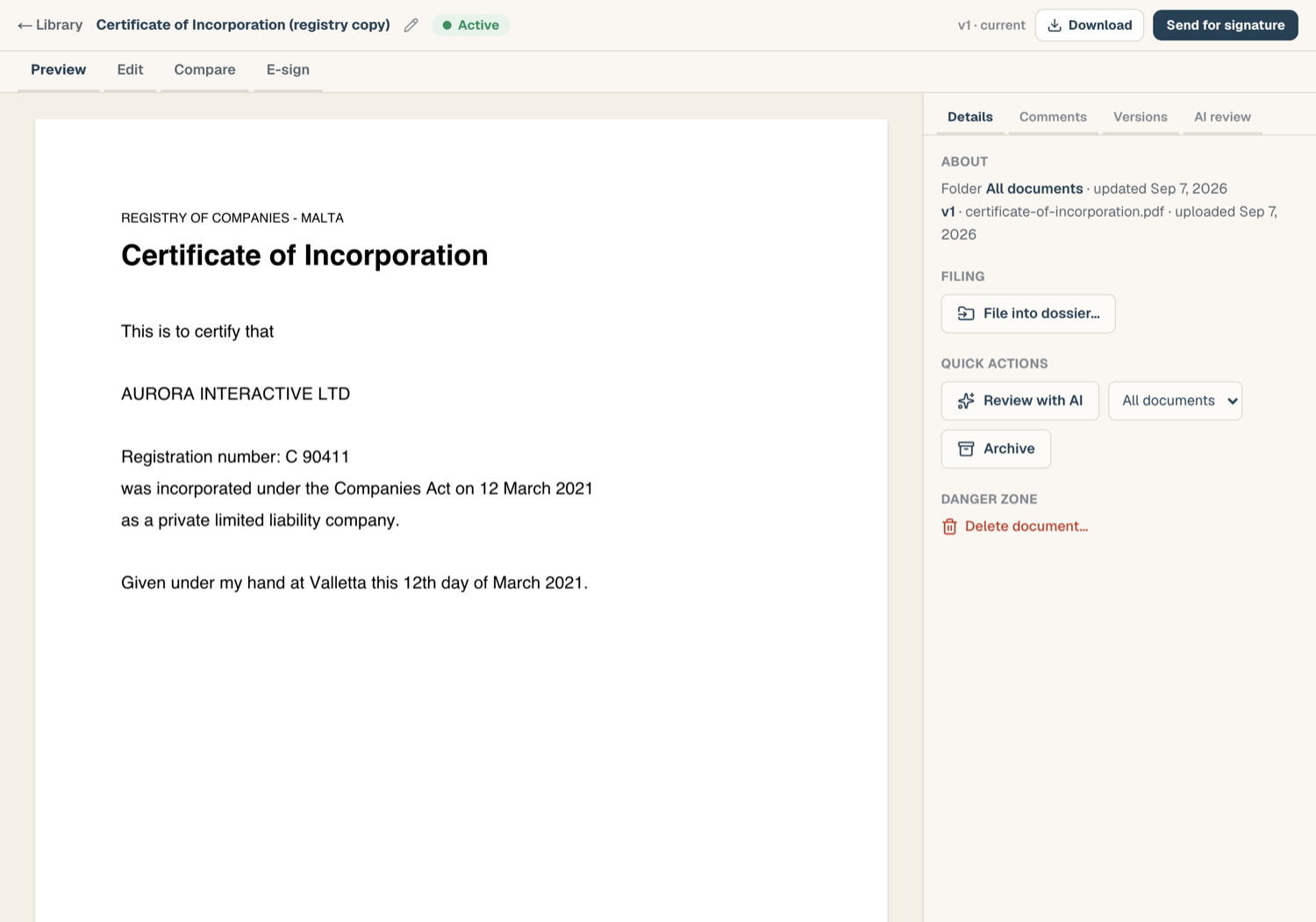
The header stays with you whatever you're doing:
- Title: click it to rename the document inline.
- Chips show the document kind and lifecycle status.
- Version chip names the current version; the full history lives in the rail.
- Download fetches the current version.
- A primary action button offers the most likely next step for this document (for example, Send for signature on a finished contract).
If you have unsaved changes, the back link and the tabs both ask before you leave.
Mode tabs
Tabs along the top switch what the main pane does:
- Preview: read the document page by page.
- Edit: the PDF editor for highlights, text, shapes, redaction, and page operations.
- Compare: compare two versions, two documents, or an uploaded file.
- E-sign: prepare, send, and track a signature envelope.
- Builder: appears only on contracts, and opens the contract builder.
Locked tabs explain themselves
A tab you can't use right now stays visible but locked, with the reason stated. Common cases:
- Word documents can't be edited or sent for e-sign until you convert them to PDF.
- A contract with no rendered PDF yet can't be previewed: the workspace points you to the builder instead.
- While an envelope is out for signature, the document is pinned and editing waits until the envelope completes or is voided.
The rail
The right-hand rail carries everything about the document that isn't the pages themselves:
- Details: filing into the KYB Manager, folder and organisation, the e-sign summary, and the danger zone (archive and permanent delete).
- Comments: anchored threads, readable and workable without opening the editor. See Comments and collaboration.
- Versions: the full version history with download, restore, and delete.
- AI review: run a structured AI review of the document and read the stored report, if Legal AI is enabled for your workspace. The tab carries its own Model control, so you can set the model before you open the run dialog. Long documents can take a few minutes and you can leave the page while one runs.
Related articles
- The document library: where documents live
- Work with versions: history, restore, and deletion
- Comments and collaboration: threads, pins, and signer visibility