
The library accepts Word files (.docx) alongside PDFs and images. Word documents can be previewed, compared, and commented on as they are; editing and e-sign need a PDF, and converting takes one click.
Upload a Word document
- On the Documents page, open + New and choose the upload option, or drag the .docx onto the page.
- The document lands in the library with a Word badge on its row and in its workspace.
What works as-is
- Preview: the Word file is rendered to a page view on the fly each time you open it. Nothing is stored; the .docx stays the version. If the strip above the pages says the conversion service is not configured, ask the platform administrator.
- Compare, including the redline view, against PDFs, other Word files, or an uploaded file
- Comments, including importing the comments already inside the file (below)
- Versions: full history, download, restore
Edit the text: Open in builder
Word files are not edited in place. To work on the text, click Open in builder in the strip above the preview. The document's text becomes an editable contract-builder copy: headings, paragraphs with bold, italic and underline, numbered and bulleted lists with their nesting, tables and page breaks. The copy is a new draft contract named "… (editable)" in the same folder, linked back to the Word document; the original is untouched.
The conversion is deliberately honest about what it cannot carry. A notice in the builder lists anything dropped: images and drawings, headers and footers, footnotes, tracked changes (shown as if accepted), fonts and colours. Check the result before relying on it. From the builder you can render a PDF, export Word again, or send for signature.
What needs a PDF first
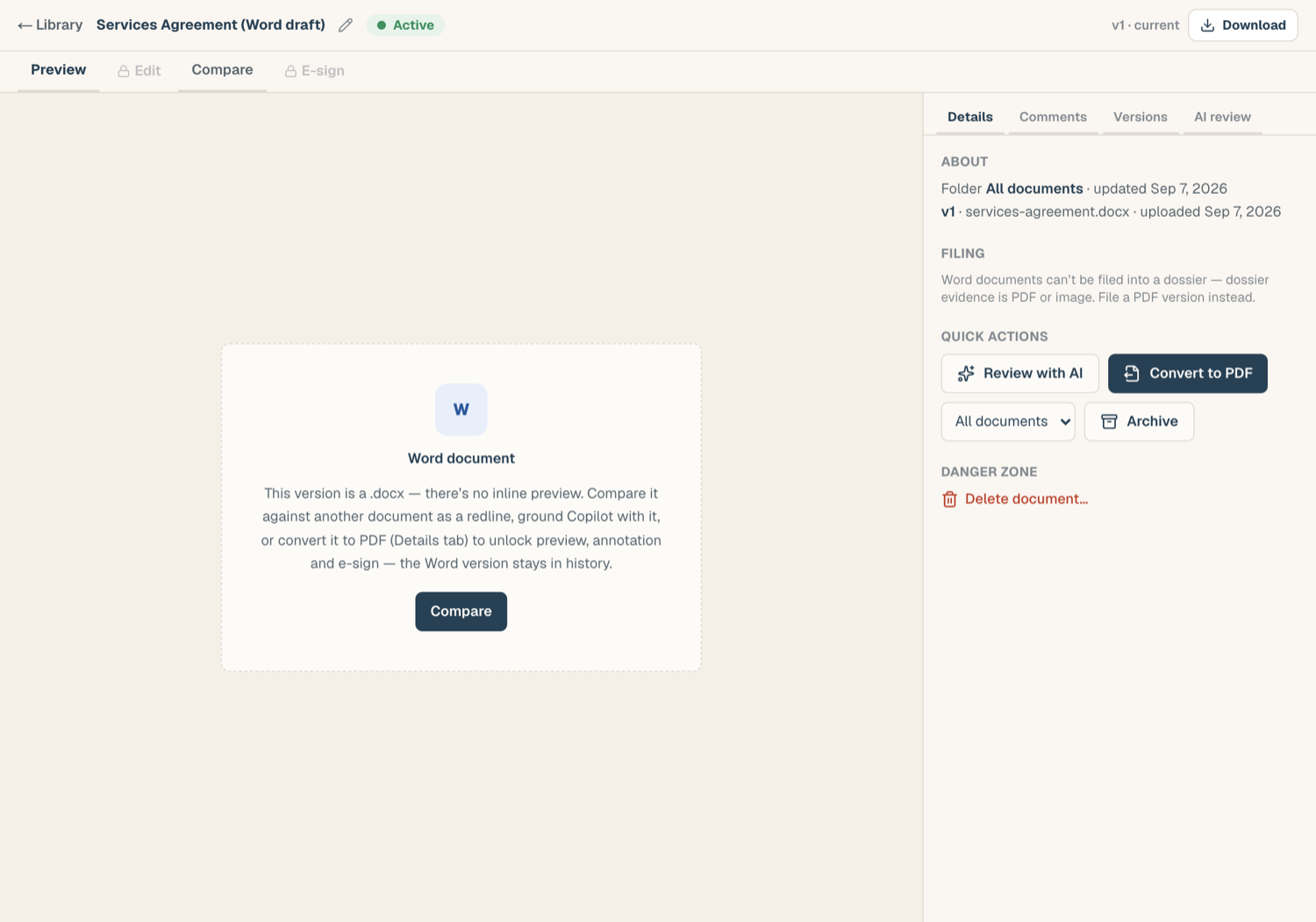
The Edit and E-sign tabs stay locked on a Word document, and each states why: markup, redaction, and signature fields are placed on fixed pages, which Word's flowing layout doesn't have. Convert to PDF to unlock them.
Convert to PDF
- Open the document and find Convert to PDF in the rail's Details tab.
- Confirm. The conversion runs on ComplyWise's secure infrastructure and usually takes a few seconds.
- The PDF arrives as a new version of the same document, noted "Converted from Word". The Word original isn't lost: it moves into version history and stays downloadable and restorable.
Once the current version is a PDF, preview, editing, compare, and e-sign all work normally.
Import Word comments
If the .docx arrived with comments in it, you can bring them into ComplyWise as real threads:
- Open the rail's Comments tab. On a Word document, an import strip shows how many comments the file contains.
- Click Import. Each open Word comment becomes a thread, with the Word author and date noted in the comment body and replies threaded underneath.
- Comments already resolved in Word are skipped and counted, and importing again never duplicates what's already in.
Export redlines back to Word
After comparing, the track-changes Word export produces a .docx with genuine tracked changes (and optionally the comments), so the counterparty can accept or reject each edit in Word. See Compare documents.
Tips
- KYB records hold PDF or image evidence only. Convert a Word document before filing it into the KYB Manager; the filing action reminds you if you forget.
- Only .docx is supported; older .doc files and spreadsheets are not accepted by the library.
Related articles
- Compare documents: redline views and exports
- Work with versions: where the Word original lives after conversion
- Comments and collaboration: threads once the comments are imported