
The PDF editor lets you mark up, stamp, and redact any PDF in the library without leaving ComplyWise. Your work lives in a shared draft until you save it as a new version.
Before you start
- Editing needs the Editor or Workspace Admin role. View Only members can open the editor to read and comment.
- Word documents can't be edited directly: convert them to PDF first.
Open the editor
- Open the document from the Documents page.
- Switch to the Edit tab.
The tools
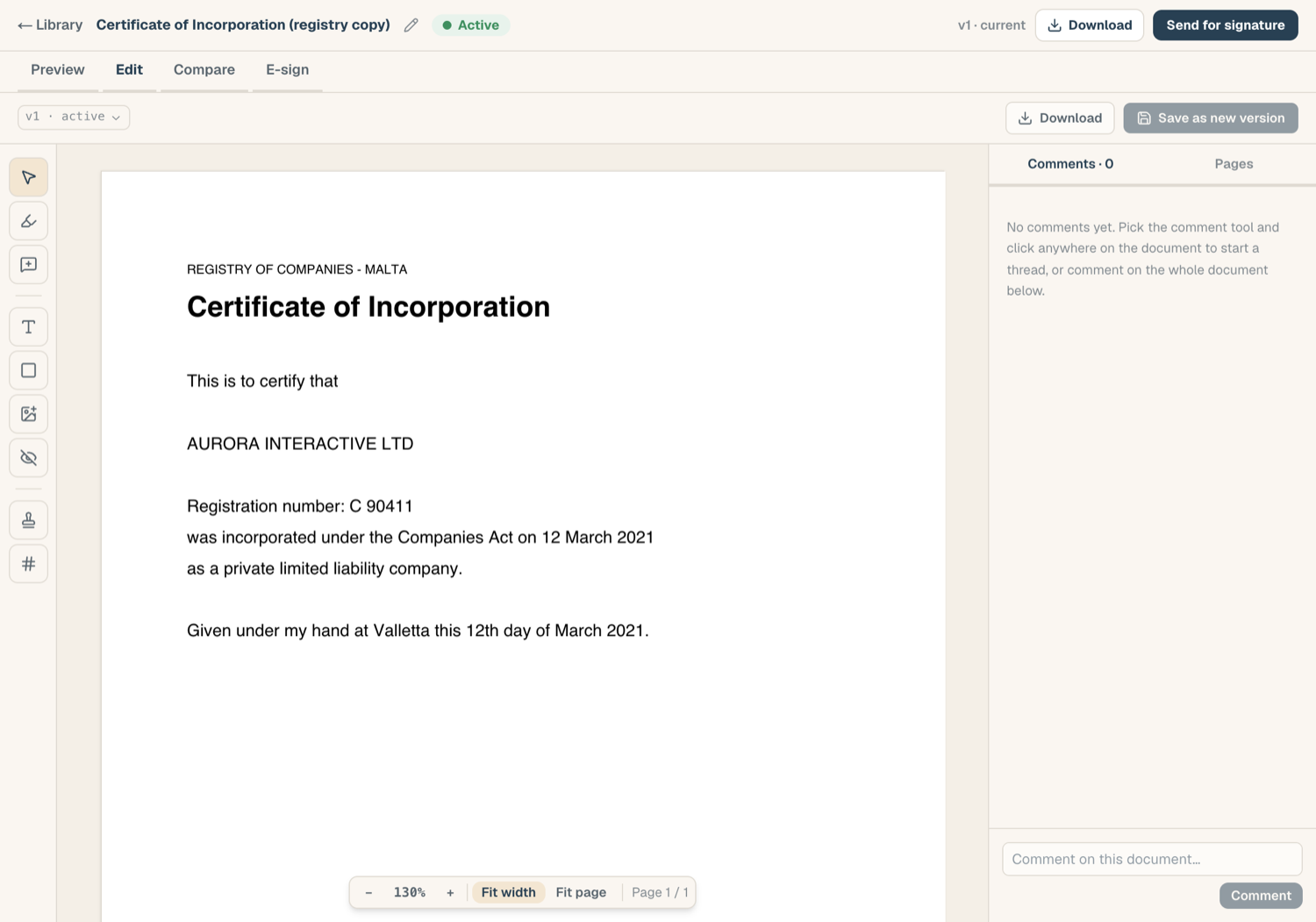
- Highlight: drag over a region of the page to highlight it.
- Text: place a text box; choose size (8 to 48 pt), color, and bold.
- Shape: rectangles, ellipses, and lines, with stroke color, stroke width, and optional fill. Switch to select mode to move, resize, or restyle anything you've placed.
- Image: place a PNG or JPEG (up to 8 MB), then drag to position and resize; proportions stay locked.
- Redact: mark a region for redaction. Marks show as dashed outlines while you work; the removal happens at save (see below).
Watermarks and page numbers
From the toolbar you can add a watermark or page numbers across the document. Both dialogs show a live preview, so you see the result before committing.
Page operations
The Pages rail thumbnails every page. From there you can:
- Rotate a page
- Delete a page (deleted pages stay visible as ghosts with an Undo until you save)
- Reorder pages by dragging
One shared draft
Each document has a single draft that everyone with edit rights shares. Your changes autosave as you work. If a teammate saves the draft while you have it open, a stale banner appears so you never overwrite each other unknowingly: reload to pick up their changes before continuing.
Save as a new version
- Click Save as new version.
- The dialog summarises what will be applied; add a note describing the change.
- Confirm. Everything burns into a brand-new file version: highlights, text, shapes, images, watermark, page numbers, and page operations. The original version stays untouched in history.
What saving a redaction really does
If the draft contains redaction marks, the save button reads Apply redactions & save and warns you the step is destructive. On the marked pages, ComplyWise genuinely removes the underlying content by re-rendering the page as an image with the marked regions blanked. This is not a cosmetic black box: the text underneath is gone from the new version and can't be copied or extracted. The unredacted original remains in version history, so control access to it accordingly.
Related articles
- Work with versions: history, restore, and deletion
- Comments and collaboration: discussing a document without editing it
- The document workspace: all the modes in one page