
This article covers the essentials of the Copilot chat: starting a conversation, choosing a model, and managing your threads. Conversations are private to you unless you add them to a project.
Before you start
- Your workspace needs the Legal AI entitlement and your role needs the AI permission. If Legal AI shows as not enabled, contact your platform team.
- Each assistant reply costs AI credits (1 credit times the model's multiplier). The credit chip near the composer shows what you have left.
Start a conversation
- Open Legal AI in the sidebar.
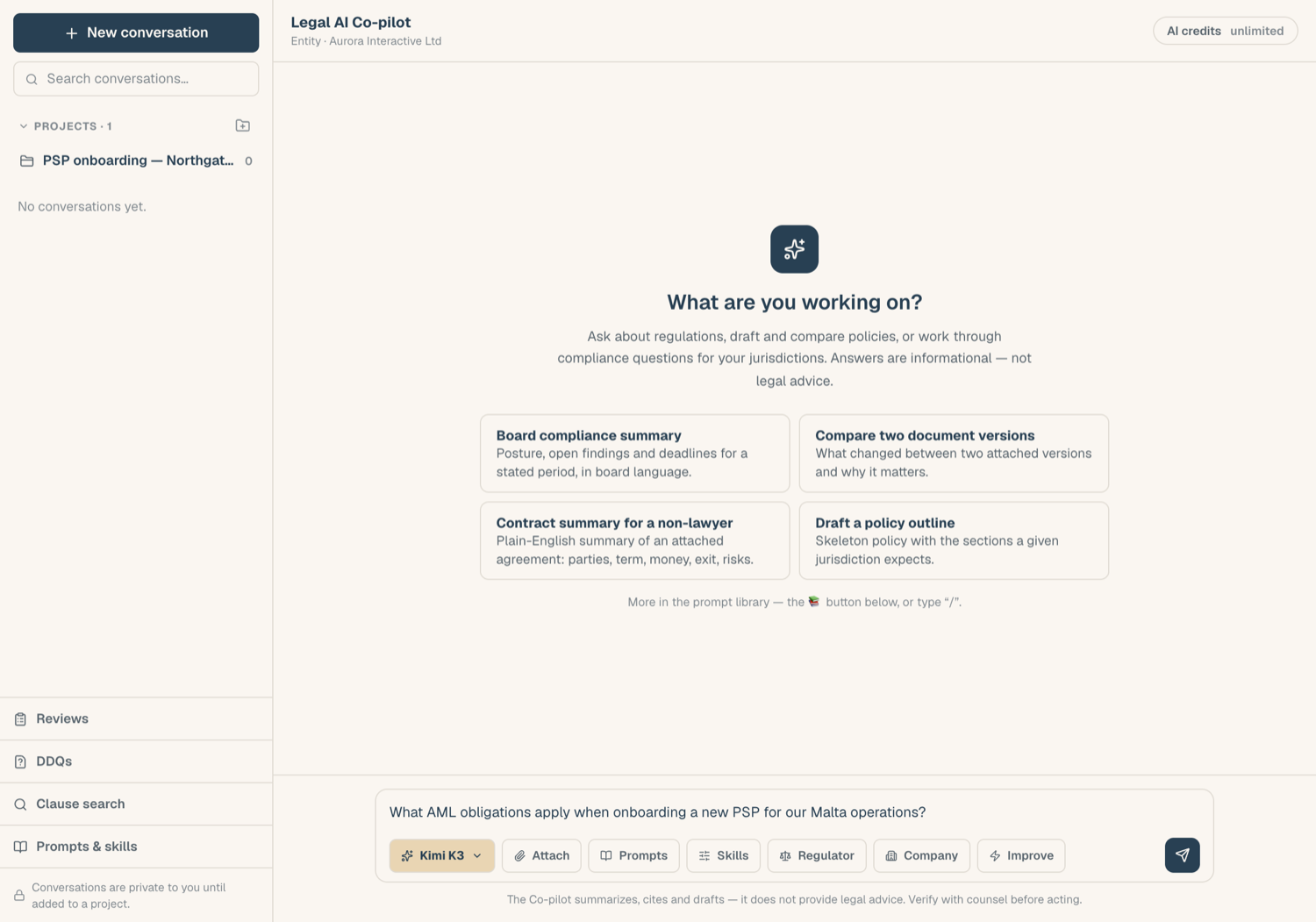
- Type your question into the composer and press send. A new thread is created on your first message.
- The welcome screen also offers starter tiles drawn from your workspace's prompt library: click one to prefill the composer.
Pick a model
- Open the model selector next to the composer.
- Choose from several vetted models, all routed with zero data retention.
- Each model shows its credit multiplier: a x3 model spends three credits per reply where a x1 model spends one. Pick a heavier model for complex analysis, a lighter one for quick questions.
Your pick is remembered on this device: every new conversation starts with it. An existing thread always reopens on the model its last answer used, so an old thread never silently changes model. You can still switch between messages, and the change applies from the next reply. Each row in the picker also shows the model's token limit, the most text it can read in one call.
Stop a response, or leave the page
While the Copilot is streaming an answer, a Stop generating button sits above the composer. Click it to end the response where it is; the partial answer stays in the thread, marked Stopped, and counts as that reply's credit.
Generation runs on the server, not in your browser. You can close the tab, switch threads, or lose your connection and the answer still finishes: reopen the thread to find it, drafting artifacts included. A reply that never finished is marked Interrupted and costs nothing.
Manage your threads
The conversation rail on the left lists your threads, newest first.
- Search the rail to find an older thread by title.
- Hover a thread for its actions: Rename to give it a clearer title, Delete to remove it permanently.
- Threads you added to a project appear under that project; teammates' project threads are listed too, read-only.
Deleting a conversation removes its messages for good, so rename rather than delete if you might need the thread later.
Tips
- Attach documents before asking about them: grounded answers cite the exact passages used. See Ground answers in your documents.
- Reusable question? Save it to the prompt library straight from the chat; see Prompts and skills.
- If a reply fails or errors out, no credits are used.
Related articles
- What the Legal AI Copilot does: capabilities and privacy
- Ground answers in your documents: attach files and read citations
- Prompts and skills: reusable prompts and conversation lenses