
Every library document keeps a full version history: uploads, edited saves, conversions, and signed outputs all become numbered versions. This article shows you how to add, download, restore, and delete versions.
Before you start
- Uploading and editing versions needs the Editor or Workspace Admin role. View Only members can read the history and download.
- The history lives in the Versions tab of the document workspace rail. Open the document from the Documents page to find it.
Upload a new version
- Open the document and switch the rail to Versions.
- Click New version and pick the file.
- The upload becomes the current version; the previous one moves into history. Nothing is lost.
Versions created by the editor or the builder carry a note describing what changed (you write it in the save dialog); notes show alongside each entry in the history.
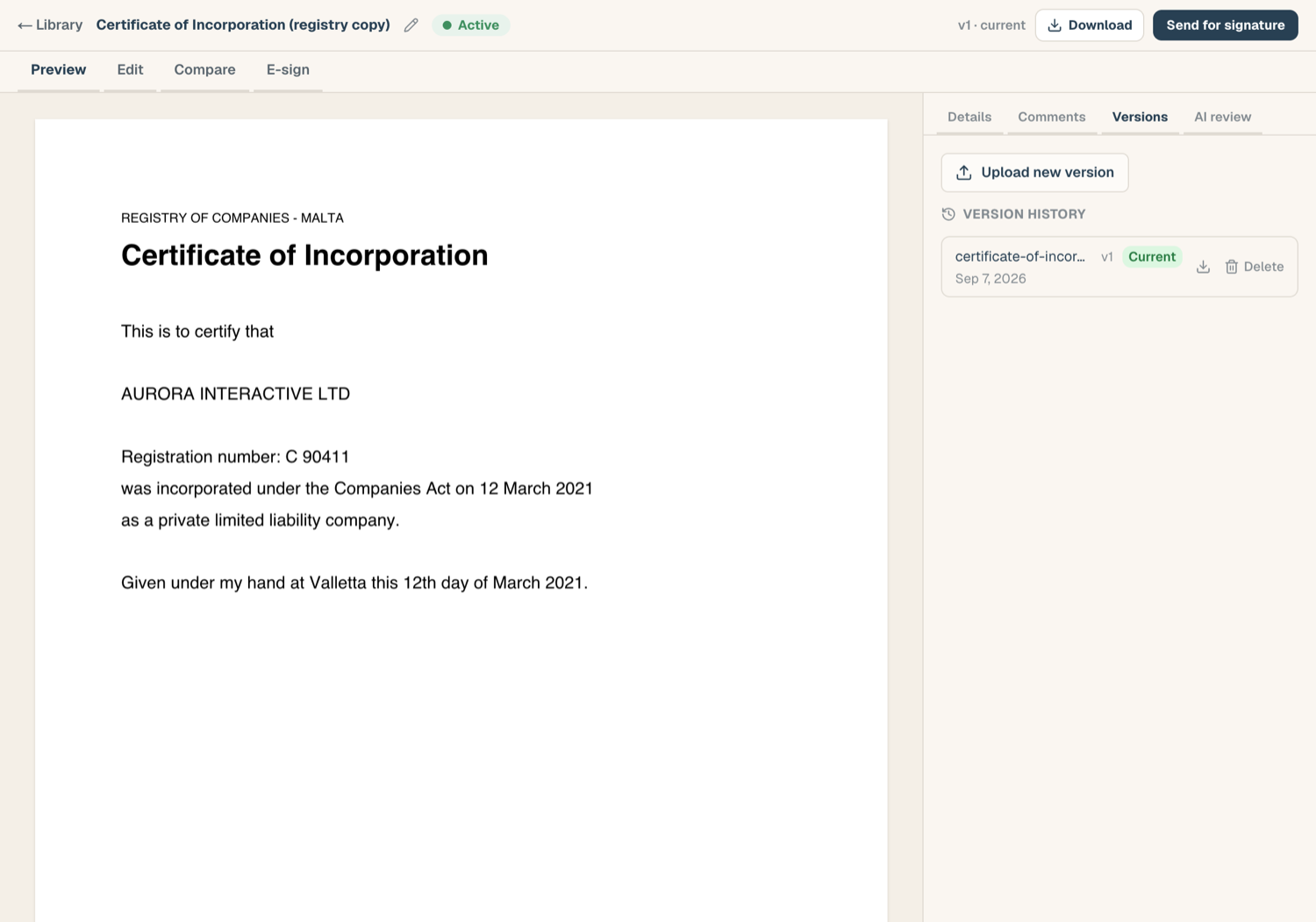
Download any version
Every entry in the history has its own Download, including superseded versions. Use this to retrieve exactly what was shared or signed at a point in time.
Restore a superseded version
- Find the older version in the history.
- Click Restore as current.
- That version becomes current again, and whatever was current moves into history.
Restoring never creates a duplicate: the version is un-retired in place, so the history stays truthful.
Delete a version
You can delete an individual version (for example, an upload made by mistake):
- In the history, click Delete on the version.
- The version is removed from normal view but kept for a retention window before permanent purge: the history shows the purge deadline, and Restore stays available until then. The window is 30 days unless your workspace has configured a different retention period.
Deleting the current version promotes nothing automatically; if the document is left without a live file, the workspace says so.
Delete a document permanently
Deleting the whole document is separate and deliberate:
- Open the Details tab of the rail and find the Danger zone.
- Click Delete permanently and confirm.
- The document, its versions, and its stored files are removed.
If you only want the document out of the way, use Archive instead: it's reversible and keeps everything.
Tips
- Signed documents: when an e-sign envelope completes, the signed PDF and its certificate arrive as new versions automatically, and earlier versions stay in history.
- Word originals: converting a Word document to PDF creates a new version; the original .docx stays in history and is restorable. See Work with Word documents.
Related articles
- The document workspace: where the Versions rail lives
- Edit a PDF: saving edits as a new version
- Work with Word documents: conversion and the version it creates