
A project is a container for a matter: a licence application, a policy refresh, a market-entry review. It carries instructions, files, and default skills that every conversation inside it inherits, and it makes those conversations readable to your teammates.
Create a project
- In the Copilot rail, click the new-project button next to the Projects header (or open View all for the projects index).
- Name the project and, optionally, write instructions: standing guidance injected into every conversation in the project ("Answer with reference to our Malta licence", "Always flag deadlines").
- Stage files in the create dialog; they attach when the project is created.
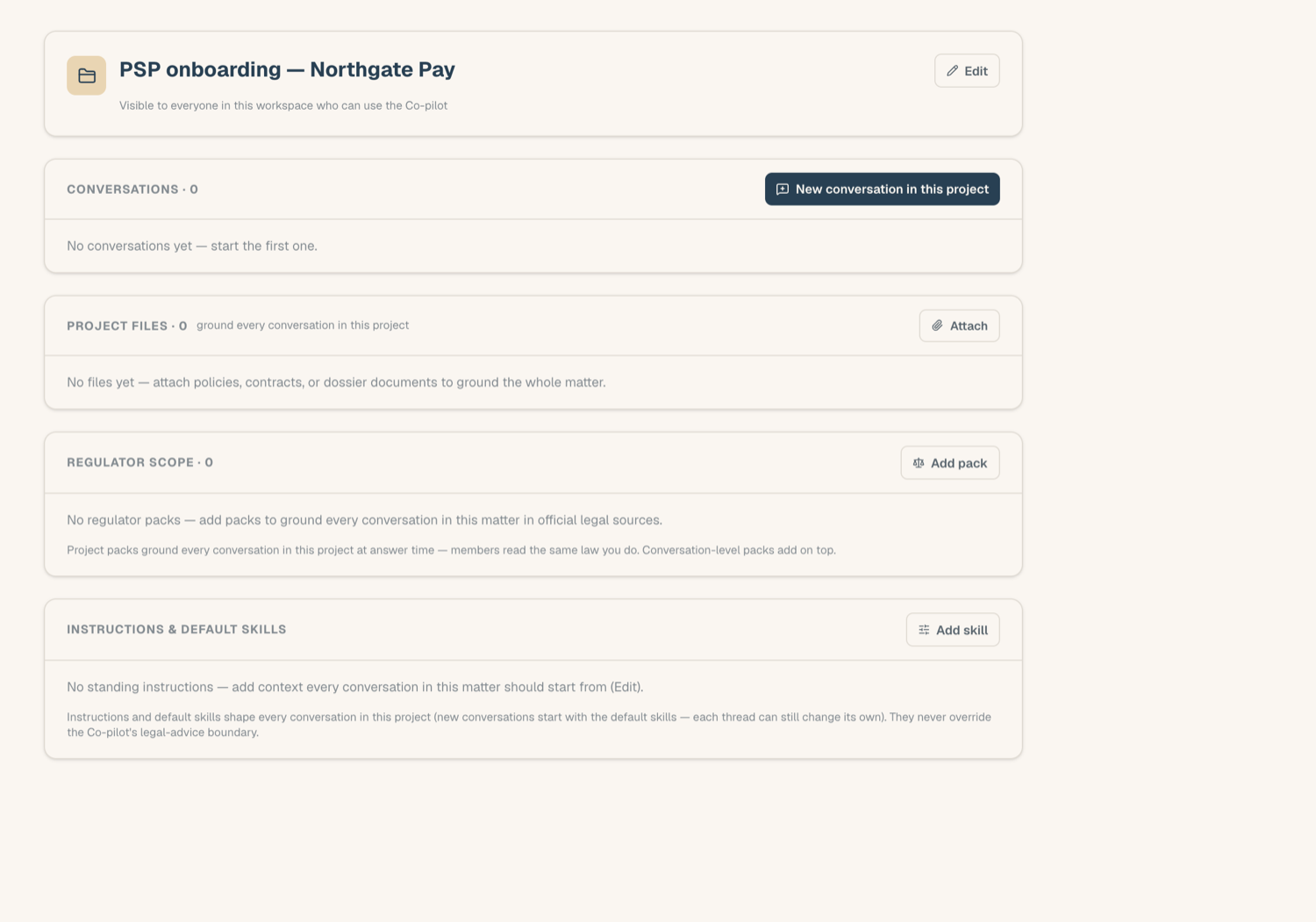
What a project gives its conversations
- Instructions are injected into every project conversation automatically.
- Project files (up to 10) ground all of the project's threads: any conversation in the project can cite them without attaching them individually.
- Default skills (up to 3) are copied onto each new conversation in the project; you can still change them per thread.
- Company association: a project can be anchored to one of your business entities. Its conversations then derive that association from the anchor, which lets the Copilot ground answers in that entity's fact sheet.
Add or remove conversations
- From a conversation's actions, choose add to project. A dialog confirms the visibility change before you proceed.
- To detach, unlink the conversation from the project; it becomes private again.
- Deleting a project does not delete its conversations: they all revert to private threads owned by their creators.
Who sees what
- Every AI user in the workspace can see every project, its files and instructions, and can read its conversations.
- Only the conversation's creator writes in a thread. Teammates open project threads read-only, marked as such, and cannot send messages in them.
- Editing a project (instructions, files, skills, deletion) is limited to its creator and holders of the prompt moderation permission.
Keep genuinely private work out of projects: adding a thread to a project is what makes it visible.
Tips
- Use one project per matter, not per person: the value is the shared context.
- Pair project files with a regulator scope (see Regulator packs) so a matter carries both your documents and the relevant law.
Related articles
- Prompts and skills: the skills projects set as defaults
- Ground answers in your documents: how file grounding works
- Chat basics: conversations, models, and threads